OMSimulator
Version: v1.17.0.postdev.alpha0-6157-g9a480e1
Introduction
The OMSimulator project is a FMI-based co-simulation tool. It supports large-scale simulation and virtual prototyping using models from multiple sources utilizing the FMI standard. It is integrated into OpenModelica but also available stand-alone, i.e., without dependencies to Modelica specific models or technology. OMSimulator provides an industrial-strength open-source FMI-based modelling and simulation tool. Input/output ports of FMUs can be connected, ports can be grouped to buses, FMUs can be parameterized and composed, and composite models can be exported according to the SSP (System Structure and Parameterization) standard. Efficient FMI based simulation is provided for both model exchange and co-simulation. An external API is available for use from other tools and scripting languages such as Python.
OMSimulator
OMSimulator is a command line interface for the OMSimulatorLib library. It can be used to simulate Functional Mock-up Units (FMUs) and System Structure and Parameterization (SSP) files, as well as execute dedicated Python simulation scripts using the OMSimulator Python API.
OMSimulator Flags
A brief description of all command line flags can be displayed using
OMSimulator --help:
usage: OMSimulator [-h] [--validate] [--calibrate [ACTIVITY]]
                   [--calibrationOutput CALIBRATIONOUTPUT] [--uqFile UQFILE]
                   [--version]
                   [--addParametersToCSV | --no-addParametersToCSV]
                   [--algLoopSolver {fixedpoint,kinsol}] [--clearAllOptions]
                   [--CVODEMaxErrTestFails CVODEMAXERRTESTFAILS]
                   [--CVODEMaxNLSFailures CVODEMAXNLSFAILURES]
                   [--CVODEMaxNLSIterations CVODEMAXNLSITERATIONS]
                   [--CVODEMaxSteps CVODEMAXSTEPS]
                   [--deleteTempFiles | --no-deleteTempFiles]
                   [--directionalDerivatives | --no-directionalDerivatives]
                   [--dumpAlgLoops | --no-dumpAlgLoops]
                   [--emitEvents | --no-emitEvents]
                   [--ignoreInitialUnknowns | --no-ignoreInitialUnknowns]
                   [--initialStepSize INITIALSTEPSIZE]
                   [--inputExtrapolation | --no-inputExtrapolation]
                   [--intervals INTERVALS] [--logFile LOGFILE]
                   [--logLevel LOGLEVEL] [--master MASTER]
                   [--maxEventIteration MAXEVENTITERATION]
                   [--maxLoopIteration MAXLOOPITERATION]
                   [--minimumStepSize MINIMUMSTEPSIZE] [--mode {cs,me}]
                   [--numProcs NUMPROCS] [--progressBar | --no-progressBar]
                   [--realTime | --no-realTime] [--resultFile RESULTFILE]
                   [--skipCSVHeader | --no-skipCSVHeader]
                   [--solver {euler,cvode}] [--solverStats | --no-solverStats]
                   [--startTime STARTTIME] [--stepSize STEPSIZE]
                   [--stopTime STOPTIME] [--stripRoot | --no-stripRoot]
                   [--suppressPath | --no-suppressPath] [--tempDir TEMPDIR]
                   [--timeout TIMEOUT] [--tolerance TOLERANCE]
                   [--wallTime | --no-wallTime] [--workingDir WORKINGDIR]
                   [--zeroNominal | --no-zeroNominal]
                   model

Command line entry point for OMSimulator. Allows running a model file
directly, e.g.: OMSimulator test.ssp OMSimulator model.fmu OMSimulator test.py
running a Python driver script without having to write a driver script. All
simulation settings (start/stop time, result file, tolerance, ...) are taken
from the model itself; use --resultFile/--startTime/--stopTime/--tolerance/
--stepSize to override them. For FMUs that export both model exchange and co-
simulation, use --mode to pick which one to run. Pass --stripRoot to drop the
"model.root" prefix from exported signal names. Files are validated against
their schema (FMI for .fmu, SSP for .ssp) before simulation; pass --validate
to only validate the file and skip simulation e.g.: OMSimulator --validate
test.ssp OMSimulator --validate model.fmu For an SSP with a UQ layered
standard file (see OMSimulator.calibration), pass --calibrate to fit the
parameters of a Calibration activity to its reference data instead of
simulating, e.g.: OMSimulator --calibrate cal_01 --calibrationOutput
calibrated.ssp test.ssp

positional arguments:
  model                 Path to a .ssp or .fmu file to simulate

options:
  -h, --help            show this help message and exit
  --validate            Only validate the file against its schema; do not
                        simulate
  --calibrate [ACTIVITY]
                        Fit the parameters of a Calibration activity of the UQ
                        file of the SSP to its reference data instead of
                        simulating; ACTIVITY is the activity id, needed if
                        there are several (.ssp only)
  --calibrationOutput CALIBRATIONOUTPUT
                        SSP file to write the calibrated model to (default:
                        the input name plus .calibrated.ssp)
  --uqFile UQFILE       Path of the UQ file inside the SSP (default: the one
                        referenced by ssc:MetaData of type
                        application/x-uncertainty-quantification)
  --version             show program's version number and exit
  --addParametersToCSV, --no-addParametersToCSV
                        Export parameters to a .csv file (default: false)
  --algLoopSolver {fixedpoint,kinsol}
                        Specifies the loop solver method used for algebraic
                        loops spanning multiple components (default: kinsol)
  --clearAllOptions     Reset all flags to their default values
  --CVODEMaxErrTestFails CVODEMAXERRTESTFAILS
                        Maximum number of error test failures for CVODE
                        (default: 100)
  --CVODEMaxNLSFailures CVODEMAXNLSFAILURES
                        Maximum number of nonlinear convergence failures for
                        CVODE (default: 100)
  --CVODEMaxNLSIterations CVODEMAXNLSITERATIONS
                        Maximum number of nonlinear solver iterations for
                        CVODE (default: 5)
  --CVODEMaxSteps CVODEMAXSTEPS
                        Maximum number of steps for CVODE (default: 1000)
  --deleteTempFiles, --no-deleteTempFiles
                        Delete temporary files as soon as they are no longer
                        needed (default: true)
  --directionalDerivatives, --no-directionalDerivatives
                        Use directional derivatives to calculate the Jacobian
                        for algebraic loops (default: true)
  --dumpAlgLoops, --no-dumpAlgLoops
                        Dump information for algebraic loops (default: false)
  --emitEvents, --no-emitEvents
                        Emit events during simulation (default: true)
  --ignoreInitialUnknowns, --no-ignoreInitialUnknowns
                        Ignore initial unknowns from the modelDescription.xml
                        (default: false)
  --initialStepSize INITIALSTEPSIZE
                        Specify the initial step size (default: 1e-06)
  --inputExtrapolation, --no-inputExtrapolation
                        Enable input extrapolation using derivative
                        information (default: false)
  --intervals INTERVALS
                        Specify the number of communication points (arg > 1)
                        (default: 500)
  --logFile LOGFILE     Specify the log file (default: stdout)
  --logLevel LOGLEVEL   Set the log level (0: default, 1: debug, 2:
                        debug+trace) (default: 0)
  --master MASTER       Specify the master algorithm (ma) (default: ma)
  --maxEventIteration MAXEVENTITERATION
                        Specify the maximum number of iterations for handling
                        a single event (default: 100)
  --maxLoopIteration MAXLOOPITERATION
                        Specify the maximum number of iterations for solving
                        algebraic loops between system-level components.
                        Internal algebraic loops of components are not
                        affected. (default: 10)
  --minimumStepSize MINIMUMSTEPSIZE
                        Specify the minimum step size (default: 1e-12)
  --mode {cs,me}        Force 'cs' (co-simulation) or 'me' (model exchange)
                        for FMUs that export both kinds (.fmu only) (default:
                        co-simulation)
  --numProcs NUMPROCS   Specify the maximum number of processors to use
                        (0=auto, 1=default) (default: 1)
  --progressBar, --no-progressBar
                        Show a progress bar for the simulation progress in the
                        terminal (default: false)
  --realTime, --no-realTime
                        Enable experimental feature for (soft) real-time co-
                        simulation (default: false)
  --resultFile RESULTFILE
                        Specify the name of the output result file (default:
                        the model name plus '_res.mat')
  --skipCSVHeader, --no-skipCSVHeader
                        Skip the CSV delimiter row in the header of .csv
                        result files (default: true)
  --solver {euler,cvode}
                        Set the ODE solver for model-exchange FMUs (.fmu,
                        mode=me only) (default: cvode)
  --solverStats, --no-solverStats
                        Add solver stats to the result file, e.g., step size;
                        not supported for all solvers (default: false)
  --startTime STARTTIME
                        Specify the start time (default: from the model)
  --stepSize STEPSIZE   Specify the (maximum) step size (.fmu only) (default:
                        from the model)
  --stopTime STOPTIME   Specify the stop time (default: from the model)
  --stripRoot, --no-stripRoot
                        Remove the root system prefix from all exported
                        signals (default: false)
  --suppressPath, --no-suppressPath
                        Suppress path information in info messages; especially
                        useful for testing (default: true)
  --tempDir TEMPDIR     Specify the temporary directory (default: the working
                        directory)
  --timeout TIMEOUT     Specify the maximum allowed time in seconds for
                        running a simulation (default: 0 (disabled))
  --tolerance TOLERANCE
                        Specify the relative tolerance (default: from the
                        model)
  --wallTime, --no-wallTime
                        Add wall time information to the result file (default:
                        false)
  --workingDir WORKINGDIR
                        Specify the working directory (default: the current
                        directory)
  --zeroNominal, --no-zeroNominal
                        Accept FMUs with invalid nominal values and replace
                        the invalid nominal values with 1.0 (default: false)
To use the logLevel flag with option debug (--logLevel=1)
or debug+trace (--logLevel=2), OMSimulator needs to be built with
debug configuration enabled. Refer to the
OMSimulator README on GitHub
for further instructions.
Examples
OMSimulator supports several ways of running simulations.
Running a Python script
A dedicated Python script can be passed directly to OMSimulator. The script can use the OMSimulator Python API to create and configure a simulation.
OMSimulator example.py
This is useful when the simulation setup is created programmatically or when a simulation needs additional Python logic.
Running an SSP file
An SSP file can be passed directly to OMSimulator. OMSimulator loads the system structure from the SSP file and executes the simulation.
OMSimulator example.ssp
Running an FMU
An FMU can also be passed directly to OMSimulator.
OMSimulator example.fmu
This provides a simple way to simulate an FMU without creating an SSP system explicitly.
OMSimulatorLib
This library is the core of OMSimulator and provides a C interface that can easily be utilized to handle co-simulation scenarios.
The following is a list of the available C-API functions:
RunFile
Simulates a single FMU or SSP model.
oms_status_enu_t oms_RunFile(const char* filename);
activateVariant
This API provides support to activate a multi-variant modelling from an ssp file [(e.g). SystemStructure.ssd, VarA.ssd, VarB.ssd ] from a ssp file. By default when importing a ssp file the default variant will be "SystemStructure.ssd". The users can be able to switch between other variants by using this API and make changes to that particular variant and simulate them.
oms_status_enu_t oms_activateVariant(const char* crefA, const char* crefB);
addBus
Adds a bus to a given component.
oms_status_enu_t oms_addBus(const char* cref);
addConnection
Adds a new connection between connectors A and B. The connectors need to be specified as fully qualified component references, e.g., "model.system.component.signal".
oms_status_enu_t oms_addConnection(const char* crefA, const char* crefB, bool suppressUnitConversion);
The two arguments crefA and crefB get swapped automatically if necessary. The third argument suppressUnitConversion is optional and the default value is false which allows automatic unit conversion between connections, if set to true then automatic unit conversion will be disabled.
addConnector
Adds a connector to a given component.
oms_status_enu_t oms_addConnector(const char* cref, oms_causality_enu_t causality, oms_signal_type_enu_t type);
addConnectorToBus
Adds a connector to a bus.
oms_status_enu_t oms_addConnectorToBus(const char* busCref, const char* connectorCref);
addResources
Adds an external resources to an existing SSP. The external resources should be a ".ssv" or ".ssm" file
oms_status_enu_t oms_addResources(const char* cref_, const char* path)
addSignalsToResults
Add all variables that match the given regex to the result file.
oms_status_enu_t oms_addSignalsToResults(const char* cref, const char* regex);
The second argument, i.e. regex, is considered as a regular expression (C++11). ".*" and "(.)*" can be used to hit all variables.
addSubModel
Adds a component to a system.
oms_status_enu_t oms_addSubModel(const char* cref, const char* fmuPath);
addSystem
Adds a (sub-)system to a model or system.
oms_status_enu_t oms_addSystem(const char* cref, oms_system_enu_t type);
compareSimulationResults
This function compares a given signal of two result files within absolute and relative tolerances.
int oms_compareSimulationResults(const char* filenameA, const char* filenameB, const char* var, double relTol, double absTol);
The following table describes the input values:
Input |
Type |
Description |
|---|---|---|
filenameA |
String |
Name of first result file to compare. |
filenameB |
String |
Name of second result file to compare. |
var |
String |
Name of signal to compare. |
relTol |
Number |
Relative tolerance. |
absTol |
Number |
Absolute tolerance. |
The following table describes the return values:
Type |
Description |
|---|---|
Integer |
1 if the signal is considered as equal, 0 otherwise |
copySystem
Copies a system.
oms_status_enu_t oms_copySystem(const char* source, const char* target);
delete
Deletes a connector, component, system, or model object.
oms_status_enu_t oms_delete(const char* cref);
deleteConnection
Deletes the connection between connectors crefA and crefB.
oms_status_enu_t oms_deleteConnection(const char* crefA, const char* crefB);
The two arguments crefA and crefB get swapped automatically if necessary.
deleteConnectorFromBus
Deletes a connector from a given bus.
oms_status_enu_t oms_deleteConnectorFromBus(const char* busCref, const char* connectorCref);
deleteResources
Deletes the reference and resource file in a SSP. Deletion of ".ssv" and ".ssm" files are currently supported. The API can be used in two ways.
deleting only the reference file in ".ssd".
deleting both reference and resource files in ".ssp".
To delete only the reference file in ssd, the user should provide the full qualified cref of the ".ssv" file associated with a system or subsystem or component (e.g) "model.root:root1.ssv".
To delete both the reference and resource file in ssp, it is enough to provide only the model cref of the ".ssv" file (e.g) "model:root1.ssv".
When deleting only the references of a ".ssv" file, if a parameter mapping file ".ssm" is binded to a ".ssv" file then the ".ssm" file will also be deleted. It is not possible to delete the references of ".ssm" seperately as the ssm file is binded to a ssv file.
The filename of the reference or resource file is provided by the users using colon suffix at the end of cref. (e.g) ":root.ssv"
oms_status_enu_t oms_deleteResources(const char* cref);
doStep
Simulates a macro step of the given composite model. The step size will be determined by the master algorithm and is limited by the definied minimal and maximal step sizes.
oms_status_enu_t oms_doStep(const char* cref);
duplicateVariant
This API provides support to develop a multi-variant modelling in OMSimulator [(e.g). SystemStructure.ssd, VarA.ssd, VarB.ssd ]. When duplicating a variant, the new variant becomes the current variant and all the changes made by the users are applied to the new variants only, and all the ssv and ssm resources associated with the new variant will be given new name based on the variant name provided by the user. This allows the bundling of multiple variants of a system structure definition referencing a similar set of packaged resources as a single SSP. However there must still be one SSD file named SystemStructure.ssd at the root of the ZIP archive which will be considered as default variant.
oms_status_enu_t oms_duplicateVariant(const char* crefA, const char* crefB);
export
Exports a composite model to a SPP file.
oms_status_enu_t oms_export(const char* cref, const char* filename);
exportDependencyGraphs
Export the dependency graphs of a given model to dot files.
oms_status_enu_t oms_exportDependencyGraphs(const char* cref, const char* initialization, const char* event, const char* simulation);
exportSSMTemplate
Exports all signals that have start values of one or multiple FMUs to a SSM file that are read from modelDescription.xml with a mapping entry. The mapping entry specifies a single mapping between a parameter in the source and a parameter of the system or component being parameterized. The mapping entry contains two attributes namely source and target. The source attribute will be empty and needs to be manually mapped by the users associated with the parameter name defined in the SSV file, the target contains the name of parameter in the system or component to be parameterized. The function can be called for a top level model or a certain FMU component. If called for a top level model, start values of all FMUs are exported to the SSM file. If called for a component, start values of just this FMU are exported to the SSM file.
oms_status_enu_t oms_exportSSMTemplate(const char* cref, const char* filename)
exportSSVTemplate
Exports all signals that have start values of one or multiple FMUs to a SSV file that are read from modelDescription.xml. The function can be called for a top level model or a certain FMU component. If called for a top level model, start values of all FMUs are exported to the SSV file. If called for a component, start values of just this FMU are exported to the SSV file.
oms_status_enu_t oms_exportSSVTemplate(const char* cref, const char* filename)
exportSnapshot
Lists the SSD representation of a given model, system, or component.
Memory is allocated for contents. The caller is responsible to free it using the C-API. The Lua and Python bindings take care of the memory and the caller doesn't need to call free.
oms_status_enu_t oms_exportSnapshot(const char* cref, char** contents);
freeMemory
Free the memory allocated by some other API. Pass the object for which memory is allocated.
void oms_freeMemory(void* obj);
getBoolean
Get boolean value of given signal.
oms_status_enu_t oms_getBoolean(const char* cref, bool* value);
getBus
Gets the bus object.
oms_status_enu_t oms_getBus(const char* cref, oms_busconnector_t** busConnector);
getComponentType
Gets the type of the given component.
oms_status_enu_t oms_getComponentType(const char* cref, oms_component_enu_t* type);
getConnections
Get list of all connections from a given component.
oms_status_enu_t oms_getConnections(const char* cref, oms_connection_t*** connections);
getConnector
Gets the connector object of the given connector cref.
oms_status_enu_t oms_getConnector(const char* cref, oms_connector_t** connector);
getDirectionalDerivative
This function computes the directional derivatives of an FMU.
oms_status_enu_t oms_getDirectionalDerivative(const char* cref, double* value);
getElement
Get element information of a given component reference.
oms_status_enu_t oms_getElement(const char* cref, oms_element_t** element);
getElements
Get list of all sub-components of a given component reference.
oms_status_enu_t oms_getElements(const char* cref, oms_element_t*** elements);
getFMUInfo
Returns FMU specific information.
oms_status_enu_t oms_getFMUInfo(const char* cref, const oms_fmu_info_t** fmuInfo);
getFixedStepSize
Gets the fixed step size. Can be used for the communication step size of co-simulation systems and also for the integrator step size in model exchange systems.
oms_status_enu_t oms_getFixedStepSize(const char* cref, double* stepSize);
getInteger
Get integer value of given signal.
oms_status_enu_t oms_getInteger(const char* cref, int* value);
getModelState
Gets the model state of the given model cref.
oms_status_enu_t oms_getModelState(const char* cref, oms_modelState_enu_t* modelState);
getReal
Get real value.
oms_status_enu_t oms_getReal(const char* cref, double* value);
getResultFile
Gets the result filename and buffer size of the given model cref.
oms_status_enu_t oms_getResultFile(const char* cref, char** filename, int* bufferSize);
getSolver
Gets the selected solver method of the given system.
oms_status_enu_t oms_getSolver(const char* cref, oms_solver_enu_t* solver);
getStartTime
Get the start time from the model.
oms_status_enu_t oms_getStartTime(const char* cref, double* startTime);
getStopTime
Get the stop time from the model.
oms_status_enu_t oms_getStopTime(const char* cref, double* stopTime);
getString
Get string value.
Memory is allocated for value. The caller is responsible to free it using the C-API. The Lua and Python bindings take care of the memory and the caller doesn't need to call free.
oms_status_enu_t oms_getString(const char* cref, char** value);
getSubModelPath
Returns the path of a given component.
oms_status_enu_t oms_getSubModelPath(const char* cref, char** path);
getSystemType
Gets the type of the given system.
oms_status_enu_t oms_getSystemType(const char* cref, oms_system_enu_t* type);
getTime
Get the current simulation time from the model.
oms_status_enu_t oms_getTime(const char* cref, double* time);
getTolerance
Gets the tolerance of a given system or component.
oms_status_enu_t oms_getTolerance(const char* cref, double* relativeTolerance);
getVariableStepSize
Gets the step size parameters.
oms_status_enu_t oms_getVariableStepSize(const char* cref, double* initialStepSize, double* minimumStepSize, double* maximumStepSize);
getVersion
Returns the library's version string.
const char* oms_getVersion();
importFile
Imports a composite model from a SSP file.
oms_status_enu_t oms_importFile(const char* filename, char** cref);
importSnapshot
Loads a snapshot to restore a previous model state. The model must be in virgin model state, which means it must not be instantiated.
oms_status_enu_t oms_importSnapshot(const char* cref, const char* snapshot, char** newCref);
initialize
Initializes a composite model.
oms_status_enu_t oms_initialize(const char* cref);
instantiate
Instantiates a given composite model.
oms_status_enu_t oms_instantiate(const char* cref);
list
Lists the SSD representation of a given model, system, or component.
Memory is allocated for contents. The caller is responsible to free it using the C-API. The Lua and Python bindings take care of the memory and the caller doesn't need to call free.
oms_status_enu_t oms_list(const char* cref, char** contents);
listUnconnectedConnectors
Lists all unconnected connectors of a given system.
Memory is allocated for contents. The caller is responsible to free it using the C-API. The Lua and Python bindings take care of the memory and the caller doesn't need to call free.
oms_status_enu_t oms_listUnconnectedConnectors(const char* cref, char** contents);
listVariants
This API shows the number of variants available [(e.g). SystemStructure.ssd, VarA.ssd, VarB.ssd ] from a ssp file.
oms_status_enu_t oms_listVariants(const char* cref);
loadSnapshot
Loads a snapshot to restore a previous model state. The model must be in virgin model state, which means it must not be instantiated.
oms_status_enu_t oms_loadSnapshot(const char* cref, const char* snapshot, char** newCref);
newModel
Creates a new and yet empty composite model.
oms_status_enu_t oms_newModel(const char* cref);
newResources
Adds a new empty resources to the SSP. The resource file is a ".ssv" file where the parameter values set by the users using "oms_setReal()", "oms_setInteger()" and "oms_setReal()" are writtern to the file. Currently only ".ssv" files can be created.
The filename of the resource file is provided by the users using colon suffix at the end of cref. (e.g) ":root.ssv"
oms_status_enu_t oms_newResources(const char* cref)
referenceResources
Switches the references of ".ssv" and ".ssm" in a SSP file. Referencing of ".ssv" and ".ssm" files are currently supported. The API can be used in two ways.
Referencing only the ".ssv" file.
Referencing both the ".ssv" along with the ".ssm" file.
This API should be used in combination with "oms_deleteResources".To switch with a new reference, the old reference must be deleted first using "oms_deleteResources" and then reference with new resources.
When deleting only the references of a ".ssv" file, if a parameter mapping file ".ssm" is binded to a ".ssv" file, then the reference of ".ssm" file will also be deleted. It is not possible to delete the references of ".ssm" seperately as the ssm file is binded to a ssv file. Hence it is not possible to switch the reference of ".ssm" file alone. So inorder to switch the reference of ".ssm" file, the users need to bind the reference of ".ssm" file along with the ".ssv".
The filename of the reference or resource file is provided by the users using colon suffix at the end of cref (e.g) ":root.ssv", and the ".ssm" file is optional and is provided by the user as the second argument to the API.
oms_status_enu_t oms_referenceResources(const char* cref, const char* ssmFile);
removeSignalsFromResults
Removes all variables that match the given regex to the result file.
oms_status_enu_t oms_removeSignalsFromResults(const char* cref, const char* regex);
The second argument, i.e. regex, is considered as a regular expression (C++11). ".*" and "(.)*" can be used to hit all variables.
rename
Renames a model, system, or component.
oms_status_enu_t oms_rename(const char* cref, const char* newCref);
replaceSubModel
Replaces an existing fmu component, with a new component provided by the user, When replacing the fmu checks are made in all ssp concepts like in ssd, ssv and ssm, so that connections and parameter settings are not lost. It is possible that the namings of inputs and parameters match, but the start values might have been changed, in such cases new start values will be applied in ssd, ssv and ssm. In case if the Types of inputs and outputs and parameters differed, then the variables are updated according to the new changes and the connections will be removed with warning messages to user. In case when replacing a fmu, if the fmu contains parameter mapping associated with the ssv file, then only the ssm file entries are updated and the start values in the ssv files will not be changed.
oms_status_enu_t oms_replaceSubModel(const char* cref, const char* fmuPath);
reset
Reset the composite model after a simulation run.
The FMUs go into the same state as after instantiation.
oms_status_enu_t oms_reset(const char* cref);
setActivationRatio
Experimental feature for setting the activation ratio of FMUs for experimenting with multi-rate master algorithms.
oms_status_enu_t experimental_setActivationRatio(const char* cref, int k);
setBoolean
Sets the value of a given boolean signal.
oms_status_enu_t oms_setBoolean(const char* cref, bool value);
setBusGeometry
oms_status_enu_t oms_setBusGeometry(const char* bus, const ssd_connector_geometry_t* geometry);
setCommandLineOption
Sets special flags.
oms_status_enu_t oms_setCommandLineOption(const char* cmd);
setConnectionGeometry
oms_status_enu_t oms_setConnectionGeometry(const char* crefA, const char* crefB, const ssd_connection_geometry_t* geometry);
setConnectorGeometry
Set geometry information to a given connector.
oms_status_enu_t oms_setConnectorGeometry(const char* cref, const ssd_connector_geometry_t* geometry);
setElementGeometry
Set geometry information to a given component.
oms_status_enu_t oms_setElementGeometry(const char* cref, const ssd_element_geometry_t* geometry);
setFixedStepSize
Sets the fixed step size. Can be used for the communication step size of co-simulation systems and also for the integrator step size in model exchange systems.
oms_status_enu_t oms_setFixedStepSize(const char* cref, double stepSize);
setInteger
Sets the value of a given integer signal.
oms_status_enu_t oms_setInteger(const char* cref, int value);
setLogFile
Redirects logging output to file or std streams. The warning/error counters are reset.
filename="" to redirect to std streams and proper filename to redirect to file.
oms_status_enu_t oms_setLogFile(const char* filename);
setLoggingCallback
Sets a callback function for the logging system.
void oms_setLoggingCallback(void (*cb)(oms_message_type_enu_t type, const char* message));
setLoggingInterval
Set the logging interval of the simulation.
oms_status_enu_t oms_setLoggingInterval(const char* cref, double loggingInterval);
setLoggingLevel
Enables/Disables debug logging (logDebug and logTrace).
0 default, 1 default+debug, 2 default+debug+trace
void oms_setLoggingLevel(int logLevel);
setMaxLogFileSize
Sets maximum log file size in MB. If the file exceeds this limit, the logging will continue on stdout.
void oms_setMaxLogFileSize(const unsigned long size);
setReal
Sets the value of a given real signal.
oms_status_enu_t oms_setReal(const char* cref, double value);
This function can be called in different model states:
Before instantiation: setReal can be used to set start values or to define initial unknowns (e.g. parameters, states). The values are not immediately applied to the simulation unit, since it isn't actually instantiated.
After instantiation and before initialization: Same as before instantiation, but the values are applied immediately to the simulation unit.
After initialization: Can be used to force external inputs, which might cause discrete changes of continuous signals.
setRealInputDerivative
Sets the first order derivative of a real input signal.
This can only be used for CS-FMU real input signals.
oms_status_enu_t oms_setRealInputDerivative(const char* cref, double value);
setResultFile
Set the result file of the simulation.
oms_status_enu_t oms_setResultFile(const char* cref, const char* filename, int bufferSize);
The creation of a result file is omitted if the filename is an empty string.
setSolver
Sets the solver method for the given system.
oms_status_enu_t oms_setSolver(const char* cref, oms_solver_enu_t solver);
setStartTime
Set the start time of the simulation.
oms_status_enu_t oms_setStartTime(const char* cref, double startTime);
setStopTime
Set the stop time of the simulation.
oms_status_enu_t oms_setStopTime(const char* cref, double stopTime);
setString
Sets the value of a given string signal.
oms_status_enu_t oms_setString(const char* cref, const char* value);
setTempDirectory
Set new temp directory.
oms_status_enu_t oms_setTempDirectory(const char* newTempDir);
setTolerance
Sets the tolerance for a given model or system.
oms_status_enu_t oms_setTolerance(const char* cref, double relativeTolerance);
Default values are 1e-4 for both relative and absolute tolerances.
A tolerance specified for a model is automatically applied to its root system, i.e. both calls do exactly the same:
oms_setTolerance("model", relativeTolerance);
oms_setTolerance("model.root", relativeTolerance);
Component, e.g. FMUs, pick up the tolerances from there system. That means it is not possible to define different tolerances for FMUs in the same system right now.
In a strongly coupled system (oms_system_sc), the relative tolerance is used for CVODE and the absolute tolerance is used to solve algebraic loops.
In a weakly coupled system (oms_system_wc), both the relative and absolute tolerances are used for the adaptive step master algorithms and the absolute tolerance is used to solve algebraic loops.
setUnit
Sets the unit of a given signal.
oms_status_enu_t oms_setUnit(const char* cref, const char* value);
setVariableStepSize
Sets the step size parameters for methods with stepsize control.
oms_status_enu_t oms_getVariableStepSize(const char* cref, double* initialStepSize, double* minimumStepSize, double* maximumStepSize);
setWorkingDirectory
Set a new working directory.
oms_status_enu_t oms_setWorkingDirectory(const char* newWorkingDir);
simulate
Simulates a composite model.
oms_status_enu_t oms_simulate(const char* cref);
simulate_realtime
Experimental feature for (soft) real-time simulation.
oms_status_enu_t experimental_simulate_realtime(const char* ident);
stepUntil
Simulates a composite model until a given time value.
oms_status_enu_t oms_stepUntil(const char* cref, double stopTime);
terminate
Terminates a given composite model.
oms_status_enu_t oms_terminate(const char* cref);
OMSimulatorPython3
This section documents the new oms3 Python API, designed to improve modularity and reduce overhead, while providing tighter integration with Python. The updated architecture separates the simulation core from the SSP (System Structure and Parameterization) standards, offering greater flexibility, interoperability and efficient model management.
Core Capabilities
The oms3 Python API provides an extensive set of commands for building, configuring, and validating SSP models. The following table summarizes the main functionalities provided by the package.
Category |
Functionality |
|---|---|
Model Management |
|
Connectivity |
|
SSP Standards |
|
FMU Integration |
|
Utilities |
|
Command Line Interface
In addition to the Python API, the oms3 Python package installs a
OMSimulator command line entry point that can run a .ssp or
.fmu or .py file directly, without having to write a driver script:
OMSimulator model.ssp
OMSimulator model.fmu
All simulation settings (start/stop time, tolerance, ...) are taken from the
model itself; use the flags below to override them. Both file types are
validated against their schema (FMI for .fmu, SSP for .ssp) before
simulation.
The full list of command line arguments can also be printed at any time with:
OMSimulator --help
The table below summarizes the most commonly used flags. For a complete list, refer to OMSimulator Flags.
Flag |
Value |
Description |
|---|---|---|
|
|
Override the result file name. |
|
|
Override the simulation start time. |
|
|
Override the simulation stop time. |
|
|
Override the solver tolerance ( |
|
|
Override the (maximum) simulation step size ( |
|
|
Force co-simulation or model exchange for FMUs that export both
kinds ( |
|
|
Set the ODE solver for model-exchange FMUs ( |
|
— |
Remove the root system prefix from exported signal names (applies to
both |
|
|
Only validate the file against its schema; do not simulate. |
|
|
Fit the parameters of a Calibration activity instead of simulating
( |
|
|
SSP file the calibrated model is written to. |
|
|
UQ file inside the SSP, if the SSP does not reference it. |
Examples
# Simulate an FMU using its own declared defaults
OMSimulator model.fmu

# Force model-exchange mode with the Euler solver and a custom step size
OMSimulator model.fmu --mode me --solver euler --stepSize 1e-3

# Only validate an FMU or SSP against its schema, without simulating
OMSimulator model.fmu --validate
OMSimulator model.ssp --validate

# Override the stop time and result file of an SSP
OMSimulator model.ssp --stopTime 10 --resultFile out.mat

# Drop the "model.root" prefix from exported signal names (.fmu or .ssp)
OMSimulator model.fmu --stripRoot
OMSimulator model.ssp --stripRoot

# Calibrate the parameters of activity cal_01 against its reference data
OMSimulator model.ssp --calibrate cal_01 --calibrationOutput calibrated.ssp
Parameter Calibration
The OMSimulator.calibration module fits parameters of an SSP model to
reference data. The problem is described by a Calibration activity of the
OpenSCALING UQ layered standard, in a UQ file inside the SSP that the SSD
references with an ssc:MetaData element of type
application/x-uncertainty-quantification:
CalibrationTargets: the parameters to fit, with initial value and boundsObservedVariables: the simulated variables compared to the reference dataReferenceData: a CSV file; the first column is the timeParameterSet: further parameter values to setSimulationSetting: stop time and tolerance
The fit is a bounded nonlinear least squares problem solved with
scipy.optimize.least_squares, so it needs numpy and scipy
(pip install OMSimulator[calibration]). Each evaluation resets the model,
sets the parameters, initializes it and steps through the time points of the
reference data, so the FMUs are instantiated only once.
The standard does not yet define how observed variables map to the reference
data, their weights, the calibration time window or optimizer options. These
are read from an optional KeyValues element of type
org.openmodelica.omsimulator.calibration in the SimulationSetting:
Key |
Description |
|---|---|
|
Calibration time window (default: the reference data up to the
|
|
Reference data column of an observed variable (default: the column
named like the variable, optionally followed by |
|
Residual weight of an observed variable (default: 1). |
|
|
|
Optimizer tolerance on cost, step and gradient (default: 1e-8). |
|
Maximum number of model evaluations. |
|
Relative finite difference step for the Jacobian. |
The calibrated values are written to <activity>_calibrated.ssv next to
the UQ file and the ResultSet of the activity gets one ErrorMetric
of type RMSE per observed variable, referring to that parameter set.
from OMSimulator.calibration import calibrateSSP

result = calibrateSSP("model.ssp", "cal_01", output="calibrated.ssp")
print(result.parameters, result.rmse)
CalibrationProblem.fromXML and Calibration run the same fit on an
already instantiated model, e.g., to set further values before calibrating.
Quick start Example
The following example demonstrates how to
Create a new SSP model
Add FMU components as resources
Establish connections between components
Export the model to an SSP file
Re-import the exported SSP file
Instantiate the model, set parameter values, and run a simulation
from OMSimulator import SSP, CRef, Settings
Settings.suppressPath = True

# This example creates a new SSP file with an FMU instantiated as a component.
# It then exports the SSP file and re-imports and set run time value on the instantiated model and the simulates the model.

model = SSP()
model.addResource('../resources/Modelica.Blocks.Math.Add.fmu', new_name='resources/Add.fmu')
model.addResource('../resources/Modelica.Blocks.Math.Gain.fmu', new_name='resources/Gain.fmu')

component1 = model.addComponent(CRef('default', 'Add1'), 'resources/Add.fmu')
component3 = model.addComponent(CRef('default', 'Gain1'), 'resources/Gain.fmu')


model.addConnection(CRef('default', 'Gain1', 'y'), CRef('default', 'Add1', 'u1'))

#model.list()
model.export('SimpleSimulation5.ssp')
## import the exported SSP file
model2 = SSP('SimpleSimulation5.ssp')

instantiated_model = model2.instantiate()
instantiated_model.setResultFile("SimpleSimulation5_res.mat")
instantiated_model.setValue(CRef('default', 'Gain1', 'k'), 2.0)
instantiated_model.setValue(CRef('default', 'Gain1', 'u'), 6.0)

print(f"info: After instantiation:")
print(f"info:    default.Gain1.k: {instantiated_model.getValue(CRef('default', 'Gain1', 'k'))}", flush=True)
print(f"info:    default.Gain1.u: {instantiated_model.getValue(CRef('default', 'Gain1', 'u'))}", flush=True)
print(f"info:    default.Gain1.y: {instantiated_model.getValue(CRef('default', 'Gain1', 'y'))}", flush=True)
print(f"info:    default.Add1.u1: {instantiated_model.getValue(CRef('default', 'Add1', 'u1'))}", flush=True)

instantiated_model.initialize()
instantiated_model.simulate()
print(f"info: After simulation:")
print(f"info:    default.Gain1.k: {instantiated_model.getValue(CRef('default', 'Gain1', 'k'))}", flush=True)
print(f"info:    default.Gain1.u: {instantiated_model.getValue(CRef('default', 'Gain1', 'u'))}", flush=True)
print(f"info:    default.Gain1.y: {instantiated_model.getValue(CRef('default', 'Gain1', 'y'))}", flush=True)
print(f"info:    default.Add1.u1: {instantiated_model.getValue(CRef('default', 'Add1', 'u1'))}", flush=True)

instantiated_model.terminate()
instantiated_model.delete()
SSP
The ssp module provides a high-level interface for creating, importing,
and managing SSP (System Structure and Parameterization) models.
SSP models are used to describe complex system architectures by connecting multiple components and
defining their parameters, enabling seamless simulation and co-simulation workflows.
from OMSimulator import SSP, Settings
Settings.suppressPath = True

# Create a new, empty SSP model instance
model = SSP()

# Create a new, empty SSP model with a custom model name and root system name
model = SSP(model_name="model", system_name="root")

# Load an existing SSP model from a file
model = SSP("PIController.ssp")

# list the ssp components
model.list()
model_name and system_name are optional. model_name defaults to
"default" and system_name defaults to model_name. The model name is
the first element of every component reference, so a model created with
model_name="model" is addressed as CRef('model', 'Add1'). Both arguments
are ignored when an existing SSP file is loaded, because the names are then read
from the file.
Once created or loaded, an SSP model instance allows you to:
Add and configure components.
Connect signals between components.
Define parameters and experiment settings.
Export the model for simulation or further analysis.
SSD
The SSV class provides a high-level interface for importing, and managing SSD (System Structure Description) models which are unpacked from SSP files. We can use the SSD class to load an SSD file, inspect its structure, and manipulate its elements programmatically.
from OMSimulator import SSD, Settings
Settings.suppressPath = True
ssd = SSD.importFromFile('../resources/LOC/SystemStructure.ssd')
ssd.list()
SSV
The SSV class provides an interface for creating and managing System Structure Parameter Values (SSV) files. These files are used to define parameter values, units, and variability information for components within an SSP model.
- Typical use cases include:
Defining scalar variables and their default values
Assigning units and data types to parameters
Storing both numeric and string-based parameter values
Exporting parameter sets to .ssv files for reuse across simulations
Key Methods
setValue(name, value, unit=None)Assigns a parameter value. Optionally, a unit can be specified.export(filename)Writes the defined parameters to an external .ssv file.
Example
from OMSimulator import SSV, Settings

Settings.suppressPath = True

# Create a new SSV file and define parameters
ssv1 = SSV()
ssv1.setValue("k1", 2.0, "m")
ssv1.setValue("k2", 3.0)
ssv1.setValue("k3", 3)
ssv1.setValue("k4", False)
ssv1.setValue("param3", "hello")

# Export to file
ssv1.export("myfile1.ssv")
SSM
The SSM class provides an interface for creating and managing System Structure and Mapping (SSM) files. These files define how parameters declared in an SSV file are mapped to component parameters within an SSP model. This enables separation of parameter definitions from their usage, improving reusability and modularity.
- Typical use cases include:
Linking global parameter definitions (from SSV files) to component parameters in an SSP model.
Supporting multiple parameter mappings for the same input across different components.
Creating flexible configurations by swapping or updating parameter mappings without modifying the model structure.
Key Methods
mapParameter(source, target)Creates a mapping between a parameter defined in an SSV file (source) and a component parameter or input signal (target).export(filename)Writes the defined parameter mappings to an external .ssm file.
Example
from OMSimulator import SSV, SSM, Settings

Settings.suppressPath = True

# Define parameters in SSV
ssv1 = SSV()
ssv1.setValue("Input1", 2.0)
ssv1.setValue("param1", 3.0)
ssv1.setValue("param2", 3)
ssv1.export("mapping1.ssv")

# Create parameter mappings in SSM
ssm1 = SSM()
ssm1.mapParameter("Input1", "Add1.u1")
ssm1.mapParameter("Input1", "u2")
ssm1.mapParameter("Input1", "u3")
ssm1.mapParameter("param1", "k1")
ssm1.mapParameter("param2", "k2")
ssm1.export("mapping2.ssm")
FMU
The FMU class provides an interface for loading and inspecting Functional Mock-up Units (FMUs).This class allows users to access key metadata, states, and variables of an FMU directly from Python, enabling integration, validation and simulation.
- Typical use cases include:
Loading an FMU into memory for inspection or simulation.
Accessing FMU metadata such as name, GUID, and FMI version.
Iterating through state variables and retrieving their properties.
Using variable metadata (signal type, causality, variability, value references) for analysis or parameter mapping.
set default experiment settings such as start time, stop time, step size, and tolerance.
set parameters and inputs before simulation.
- Syntax
fmu = FMU(fmuPath: str, instanceName: str = "")
- Arguments
fmuPath: Path to the FMU file.
instanceName: Optional name for the FMU instance. If not provided, it defaults to the model name of the FMU. The instance name is used in the result file as prefix for the variable names.
Example
from OMSimulator import FMU

# Load FMU
fmu = FMU('../resources/Modelica.Electrical.Analog.Examples.CauerLowPassAnalog.fmu')

# Print metadata
print("name:", fmu.modelName)
print("guid:", fmu.guid)
print("fmi version:", fmu.fmiVersion)

# Inspect state variables
print("States:")
for var in sorted(fmu.states, key=lambda x: x.name):
    print({
        'name': var.name,
        'signal_type': var.signal_type.name,
        'valueReference': var.valueReference,
        'variability': var.variability,
        'causality': var.causality.name
    })
## instantiate the FMU
fmu.instantiate()
## set result file
fmu.setResultFile('CauerLowPass_res.mat')
## set parameter and input values
fmu.setValue('R1', 1000.0)
fmu.setValue('C1.u', 1e-6)
## initialize the FMU
fmu.initialize()
## simulate the FMU
fmu.simulate()
fmu.terminate()
fmu.delete()
Component
The Component class provides a flexible interface for defining modular building blocks in an SSP model. It supports architectural modeling, allowing components to represent actual FMUs or “dummy fmus” with expected connectors and parameter values. This makes it possible to design and validate system architectures before all FMUs are available.
- Key Features:
Flexible instantiation — create a component from an FMU or as a dummy placeholder.
Connector support — define inputs, outputs, and parameters with explicit causality and signal type.
Parameter management — assign values to parameters or inputs directly within the component.
SSV integration — link components to SSV files to define and manage parameter sets externally.
System integration — add the component to SSP models for hierarchical or flat system architectures.
from OMSimulator import CRef, Connector, Causality, SignalType, SSV
from OMSimulator.component import Component

# Create a dummy component
component = Component(CRef('add'), 'dummy.fmu')

# Add connectors
component.addConnector(Connector('input', Causality.input, SignalType.Real))
component.addConnector(Connector('output', Causality.output, SignalType.Real))
component.addConnector(Connector('parameter', Causality.parameter, SignalType.Real))

# Set parameter values
component.setValue('parameter', 1.0)
component.setValue('input', 2.0)

# Create an SSV file for parameter initialization
ssv = SSV()
ssv.setValue('parameter', 1.0)
ssv.setValue('input', 2.0)
ssv.export('dummy.ssv')

# Link SSV file to component
component.addSSVReference('dummy.ssv')

# List component details
component.list()
addSystem
The addSystem method creates a new system within an SSP model. Systems serve as containers for components and connectors, and can be organized hierarchically to support nested-system architectures. This enables modular, scalable, and reusable system designs.
- Key Features:
System instantiation — create new systems within the SSP model.
Hierarchical modeling — use structured
CRefpaths to create nested systems (e.g., a subsystem inside another subsystem).Organization — group related components, connectors, and resources within a defined subsystem for clarity and reusability.
Scalability — build complex system hierarchies with multiple levels.
Syntax
addSystem(cref)
- Parameters:
cref(CRef): The system reference, specifying the hierarchical path and system name within the SSP model.
Example
from OMSimulator import SSP, CRef

model = SSP()

# Create systems
model.addSystem(CRef('default', 'sub-system'))
model.addSystem(CRef('default', 'sub-system2'))

# Create a nested subsystem inside 'sub-system2'
model.addSystem(CRef('default', 'sub-system2', 'sub-sub-system'))
addConnector
The addConnector API is used to define external interfaces for systems and components within an SSP model. A connector specifies the signal type and causality (e.g., input, output, or parameter) of a variable, allowing subsystems and components to communicate through well-defined ports.
- Connectors can be added at different hierarchy levels:
Top-level system connectors, which expose inputs, outputs, and parameters of the entire SSP model.
Subsystem connectors, which define interaction points within nested systems and enable modular system design.
Syntax:
addConnector(Connector(name, causality, signal_type))
- Parameters:
name(str): Name of the connector.causality(Causality): Role of the connector (input,output, orparameter).signal_type(SignalType): Type of signal (e.g.,Real,Integer,``Boolean``,String).
Example:
from OMSimulator import SSP, CRef, Connector, Causality, SignalType

model = SSP()
# Add a top-level system connector
model.activeVariant.system.addConnector(Connector('input1', Causality.input, SignalType.Real))
# Add a connector to a subsystem
model.addSystem(CRef('default', 'sub-system'))
model.activeVariant.system.elements[CRef('sub-system')].addConnector(Connector('output', Causality.output, SignalType.Real))
addConnection
The addConnection API is used to link the output of one component to the input of another within an SSP model. Connections define the signal flow between components, ensuring that data is transmitted correctly during simulation.
- Connections are defined using source and target references:
Source: Specifies the output variable of a component.
Target: Specifies the input variable of another component.
Syntax:
addConnection(source: CRef, target: CRef)
- Parameters:
source(CRef): Reference to the output variable of the source component.target(CRef): Reference to the input variable of the target component.
Example:
from OMSimulator import SSP, CRef, Settings

model = SSP()
model.addResource('../resources/Modelica.Blocks.Math.Add.fmu', new_name='resources/Add.fmu')
model.addResource('../resources/Modelica.Blocks.Math.Gain.fmu', new_name='resources/Gain.fmu')

model.addComponent(CRef('default', 'Add1'), 'resources/Add.fmu')
model.addComponent(CRef('default', 'Gain1'), 'resources/Gain.fmu')
## add a connection from Gain1.y to Add1.u1
model.addConnection(CRef('default', 'Gain1', 'y'), CRef('default', 'Add1', 'u1'))
## list the components in the model and connections
model.list()
addResource
The addResource method allows you to add external files, such as FMUs, SSV, SSM, SRMD etc.. to an SSP model’s resource directory. This ensures that all required model files are bundled with the SSP package and can be referenced consistently during simulation.
- Key Features:
File management — copy or rename external FMUs and resources into the SSP project structure only once and use the instances multiple times in the model.
Integration with components — added resources can then be used to instantiate components within the SSP model.
Syntax
addResource(source_path, new_name=None)
- Parameters:
source_path(str): Path to the external resource file (e.g., FMU)new_name(str, optional): New name for the resource within the SSP project structure. If not provided, the original filename is used.
Example
from OMSimulator import SSP, CRef, Settings

# Add an FMU to the SSP model's resources folder
model.addResource('../resources/Modelica.Blocks.Math.Add.fmu', new_name='resources/Add.fmu')
model.addResource('../resources/Modelica.Blocks.Math.Gain.fmu', new_name='resources/Gain.fmu')
addComponent
The addComponent method allows you to instantiate a component within an SSP model. Components can be FMUs or dummy placeholders, enabling flexible system architecture design and simulation.
- Key Features:
Component instantiation — create components based on FMU resources or dummy placeholders.
Hierarchical modeling — components can be placed in nested systems using a structured CRef path.
Flexible integration — components can later be connected via connectors, linked to SSV files, or assigned custom solver settings.
Supports multiple components — multiple instances of the same FMU can be added with unique identifiers.
Syntax
addComponent(cref, resource_path)
- Parameters:
cref(CRef): The component reference, specifying the hierarchical path and component name within the SSP model.resource_path(str): Path to the FMU or model resource that the component should instantiate.
- Returns:
The newly created Component object.
Example
from OMSimulator import SSP, CRef, Settings

Settings.suppressPath = True

model = SSP()

# Add resources to the SSP model
model.addResource('../resources/Modelica.Blocks.Math.Add.fmu', new_name='resources/Add.fmu')
model.addResource('../resources/Modelica.Blocks.Math.Gain.fmu', new_name='resources/Gain.fmu')

# Instantiate components
component1 = model.addComponent(CRef('default', 'Add1'), 'resources/Add.fmu')
# instantiate multiple instances of the same FMU
component2 = model.addComponent(CRef('default', 'Add2'), 'resources/Add.fmu')
component3 = model.addComponent(CRef('default', 'Gain1'), 'resources/Gain.fmu')
component4 = model.addComponent(CRef('default', 'Gain2'), 'resources/Gain.fmu')
# list the components in the model
model.list()
addSSVReference
The addSSVReference API is used to associate an SSV (System Structure Parameterer and values) file with a specific component in an SSP model. This allows parameter values defined in the SSV file to be applied directly to the component, enabling flexible configuration and reuse of parameter sets.
The API also supports an optional third argument for specifying a parameter mapping file (.ssm), which defines how the variables in the SSV file map to the parameters of the component.
Syntax:
addSSVReference(cref, ssv_path: str, ssm_path: str = None)
- Parameters:
cref(CRef): Reference to a system, sub-system or component to which the SSV file should be applied.ssv_path(str): Path to the SSV file relative to the SSP model resources.ssm_path(str, optional): Path to a parameter mapping file (.ssm) that defines how SSV variables correspond to component parameters.
Example:
from OMSimulator import SSP, CRef, Settings, SSV, SSM, Connector, Causality, SignalType

Settings.suppressPath = True

# This example creates a new SSP file with an FMU instantiated as a component and
# set parameter values to ssv file and map some parameters to ssm file

model = SSP()
model.addResource('../resources/Modelica.Blocks.Math.Add.fmu', new_name='resources/Add.fmu')
component1 = model.addComponent(CRef('default', 'Add1'), 'resources/Add.fmu')
component2 = model.addComponent(CRef('default', 'Add2'), 'resources/Add.fmu')

## create a ssv file
ssv1 = SSV()
ssv1.setValue("connector_param", 2.0)
ssv1.setValue("connector_input", 3.0)
ssv1.export("myfile3.ssv")

## create a ssm file
ssm = SSM()
ssm.mapParameter("connector_param", "u1")
ssm.mapParameter("connector_input", "u2")
ssm.export("myfile4.ssm")


 ## Add  SSV resource to the model
 model.addResource("myfile3.ssv", "resources/myfile3.ssv")
 ## Add ssm resources to the model
 model.addResource("myfile3.ssv", "resources/myfile4.ssm")

 # Reference the SSV to a specific component
 model.addSSVReference(CRef('default', 'Add1'), 'resources/myfile3.ssv')

 # With an optional SSM mapping file
 model.addSSVReference(CRef('default', 'Add2'), 'resources/myfile4.ssv', 'resources/myfile4.ssm')
removeSSVReference
Removes the reference to a given SSV (System Structure parameter and values) file from a specific component or subsystem within the SSP model.This method is useful when a component or subsystem should no longer be associated with a parameter set defined in an SSV file.
- Notes:
The SSV file itself remains in the
resources/folder of the SSP.Only the reference from the specified component is removed.
If a parameter mapping file (.ssm) is associated with the SSV, it is also removed.
If the component had multiple SSV references, only the matching one is cleared.
Syntax:
removeSSVReference(cref, ssv_path)
- Parameters:
cref(CRef): Reference to a system, sub-system or component to which the SSV file should be applied.ssv_path(str): Path to the SSV file relative to the SSP model resources.
Example usage:
# Load an existing SSP model
model = SSP("swapSSV1.ssp")

# Remove SSV reference from top-level component Add1
model.removeSSVReference(CRef("default", "Add1"), "resources/swap1.ssv")

# Remove SSV reference from Add3 inside the subsystem
model.removeSSVReference(CRef("default", "sub-system", "Add3"), "resources/swap1.ssv")
# List the model details to verify removal
model.list()
swapSSVReference
Swaps the reference to an existing SSV (System Structure parameter and values) file with a new one for a specific component or subsystem within the SSP model.
This method is essentially a combination of removeSSVReference and
addSSVReference. It ensures that the old SSV reference is removed and replaced
with the new SSV reference in a single step, reducing the risk of leaving the system
without any SSV mapping during the transition.
- Notes:
The old SSV file remains in the
resources/folder of the SSP model.Only the reference is swapped — no SSV files are deleted.
If a parameter mapping file (.ssm) is associated with the old SSV, it will also be swapped accordingly.
This method is equivalent to calling:
model.removeSSVReference(cref, old_ssv)
model.addSSVReference(cref, new_ssv)
Syntax:
swapSSVReference(cref, old_ssv, new_ssv)
- Parameters:
cref(CRef): Reference to a system, sub-system, or component where the SSV file should be swapped.old_ssv(str): Path to the currently referenced SSV file relative to the SSP model resources.new_ssv(str): Path to the new SSV file relative to the SSP model resources.
Example usage:
# Load an existing SSP model
model = SSP("swapSSV3.ssp")

# Swap SSV reference from default system (swap5.ssv → swap6.ssv)
model.swapSSVReference(CRef("default"), "resources/swap5.ssv", "resources/swap6.ssv")

# Swap SSV reference from sub-system (swap6.ssv → swap5.ssv)
model.swapSSVReference(CRef("default", "sub-system"), "resources/swap6.ssv", "resources/swap5.ssv")

print("After swapping swap6.ssv to default and swap5.ssv to sub-system")
print("===============================================================")
model.list()
listSSVReference
Retrieves the list of SSV (System Structure parameter and values) files currently referenced by a system, sub-system, or component within the SSP model.
- Notes:
Only the references are listed — the method does not open or parse the SSV files.
If no SSV file is associated with the given scope, an empty list is returned.
The returned paths are relative to the
resources/directory of the SSP archive.
Syntax:
listSSVReference(cref) -> list[dict]
- Parameters:
cref(CRef): Reference to a system, sub-system, or component for which SSV references should be listed.
- Returns:
(list[dict]): A list of dict referenced by the given system, sub-system, or component.
Each dict contains:
ssv(str): Path to the referenced SSV file relative to the SSP model resources.ssm(str | None): Path to the associated SSM file if one exists; otherwise,None.
Example usage:
model = SSP("listSSVReference1.ssp")
model.list()

print("List of SSV references")
print("=======================")
print(f"Top level system SSV resources    : {model.listSSVReference(CRef('default'))}")
print(f"Top level sub-system SSV resources: {model.listSSVReference(CRef('default', 'sub-system'))}")
print(f"Component Add1 SSV resources      : {model.listSSVReference(CRef('default', 'Add1'))}")
print(f"Component Add2 SSV resources      : {model.listSSVReference(CRef('default', 'Add2'))}")
print(f"Component Add3 SSV resources      : {model.listSSVReference(CRef('default', 'sub-system', 'Add3'))}")
exportSSVTemplate
Exports a template SSV (System Structure Parameter Values) file for a given system, sub-system, or component within the SSP model.
The generated SSV template contains all parameters that can be configured for the referenced scope (system or component), but without assigned values. This is useful for creating new parameter sets, preparing configuration files, or documenting the available tunable parameters in a model.
- Notes:
The exported SSV file contains parameter definitions but not their actual values.
- The scope of the export depends on the provided CRef
Root system → exports all parameters for the entire SSP.
Sub-system → exports parameters for that sub-system and its components.
Component → exports only the parameters of the selected component.
The output file is always written to the specified path; existing files will be overwritten.
Syntax:
exportSSVTemplate(cref, ssv_path)
- Parameters:
cref(CRef): Reference to a system, sub-system, or component for which the SSV template should be generated.ssv_path(str): Path where the exported SSV template will be saved.
Example usage:
from OMSimulator import SSP, CRef

# Load an existing SSP model
model = SSP("exportSSVTemplate1.ssp")

# Export template for the entire SSP
model.exportSSVTemplate(CRef("default"), "exportSSVTemplate1.ssv")

# Export template for a sub-system
model.exportSSVTemplate(CRef("default", "sub-system"), "exportSSVTemplate2.ssv")

# Export template for a single component (Add1)
model.exportSSVTemplate(CRef("default", "Add1"), "exportSSVTemplate3.ssv")

# Export template for another component (Add2)
model.exportSSVTemplate(CRef("default", "Add2"), "exportSSVTemplate4.ssv")
- Example usage with fmu component:
from OMSimulator import FMU
fmu = FMU('../resources/Modelica.Blocks.Math.Add.fmu')
## export the start values in fmu to ssv template
fmu.exportSSVTemplate('startValuesSSVTemplate.ssv')
exportSSVTemplate
Exports a template SSM (System Structure Parameter mapping) file for a given system, sub-system, or component within the SSP model.
The generated SSM template contains all parameters that can be configured for the referenced scope (system or component), with source and target variables. The source attribute in ssm template will be empty and should be set by user to map to the desired variable in the SSV file. This is useful for creating new parameter mapping files, preparing configuration files.
- Notes:
The exported SSM file contains source and target definitions but source attribute will be empty.
- The scope of the export depends on the provided CRef
Root system → exports all parameters for the entire SSP.
Sub-system → exports parameters for that sub-system and its components.
Component → exports only the parameters of the selected component.
The output file is always written to the specified path; existing files will be overwritten.
Syntax:
exportSSMTemplate(cref, ssm_path)
- Parameters:
cref(CRef): Reference to a system, sub-system, or component for which the SSV template should be generated.ssm_path(str): Path where the exported SSV template will be saved.
Example usage:
from OMSimulator import SSP, CRef

# Load an existing SSP model
model = SSP("exportSSMTemplate1.ssp")

# Export template for the entire SSP
model.exportSSMTemplate(CRef("default"), "exportSSMTemplate1.ssm")

# Export template for a sub-system
model.exportSSMTemplate(CRef("default", "sub-system"), "exportSSMTemplate2.ssm")

# Export template for a single component (Add1)
model.exportSSMTemplate(CRef("default", "Add1"), "exportSSMTemplate3.ssm")

# Export template for another component (Add2)
model.exportSSMTemplate(CRef("default", "Add2"), "exportSSMTemplate4.ssm")
Example usage with fmu component:
from OMSimulator import FMU
fmu = FMU('../resources/Modelica.Blocks.Math.Add.fmu')
## export the start values in fmu to ssv template
fmu.exportSSMTemplate('startValuesSSVTemplate.ssm')
setValue
Assigns a numerical value to a parameter of a component within the SSP model.
This method is used to directly set start values or parameter values of model variables defined in an FMU component. The values are stored in the SSP model and will be applied when the model is simulated or exported.
- Notes:
The parameter must exist in the referenced FMU/component or a top level system connectors; otherwise, an error will be raised.
Values are stored at the SSP level and exported together with the model structure.
Supported data types are numerical (
float,int,str,bool).Special FMI-3.0 data types like
Float64,Float32,Int8,Int16,Int32,Int64,UInt8,UInt16,UInt32,UInt64are handled via special classes in OMSimulator likeFloat64,Int32, etc. These classes can be imported from OMSimulator and used to set parameter values with specific fmi3 data types.Parameters can be set before or after instantation.
Syntax:
setValue(cref, value)
- Parameters:
cref(CRef): Reference to the parameter variable within a component. TheCRefmust specify the system, component, and parameter name (e.g.,CRef("default", "Add1", "k1")).value(float | int | str | bool | Float64 | Float32 | Int8 | Int16 | Int32 | Int64 | UInt8 | UInt16 | UInt32 | UInt64): The value to assign to the parameter.
Example usage:
from OMSimulator import SSP, CRef, Settings

Settings.suppressPath = True

# Create a new SSP model
model = SSP()

# Add FMU resource
model.addResource("../resources/Modelica.Blocks.Math.Add.fmu", new_name="Add.fmu")

# Add two components
model.addComponent(CRef("default", "Add1"), "Add.fmu")
model.addComponent(CRef("default", "Add2"), "Add.fmu")

# Set parameter values for Add1
model.setValue(CRef("default", "Add1", "k1"), 2.0)
model.setValue(CRef("default", "Add1", "k2"), 3.0)

# Set parameter values for Add2
model.setValue(CRef("default", "Add2", "k1"), 100.0)
model.setValue(CRef("default", "Add2", "k2"), 300.0)

# Display model details
model.list()

# Export the SSP with parameter values applied
model.export("setValue2.ssp")
Example of setting FMI-3.0 specific data types:
from OMSimulator import SSP, CRef, Settings, Float64, Int32, UInt16, Float32, Int8, Int16, Int64, UInt8, UInt32, UInt64

model = SSP()
model.addResource("../resources/Feedthrough3.fmu", new_name="resources/Feedthrough3.fmu")
model.addComponent(CRef("default", "Feedthrough1"), "resources/Feedthrough3.fmu")

model.setValue(CRef("default", "Feedthrough1", "Float64_continuous_input"), Float64(3.5))
model.setValue(CRef("default", "Feedthrough1", "Int64_input"), Int64(7))
model.setValue(CRef("default", "Feedthrough1", "Float32_continuous_input"), Float32(1.5))
model.setValue(CRef("default", "Feedthrough1", "Int8_input"), Int8(3))
model.setValue(CRef("default", "Feedthrough1", "Boolean_input"), True)

model.setValue(CRef("default", "Feedthrough1", "Float32_discrete_input"), Float32(2.5))
model.setValue(CRef("default", "Feedthrough1", "Enumeration_input"), 2)

model.setValue(CRef("default", "Feedthrough1", "Int16_input"), Int16(1000))
model.setValue(CRef("default", "Feedthrough1", "UInt16_input"), UInt16(2000))
model.setValue(CRef("default", "Feedthrough1", "UInt32_input"), UInt32(3000))
model.setValue(CRef("default", "Feedthrough1", "UInt64_input"), UInt64(4000))
getValue
Retrieves the current value of a parameter or variable from a system, sub-system, or component within the SSP model.
This method is typically used to query parameter values that have been set using
setValue, or to inspect default values provided by FMUs or the SSP model.
It can be applied both before and after simulation, depending on whether the SSP has
been instantiated and executed.
- Notes:
If called before instantiation, it will return the value stored in the SSP model (either default or set explicitly by the user).
If called after instantation, it return the updated value depending on the FMU state.
Works for system-level, sub-system, and component parameters.
Returns a Python type corresponding to the variable type (
floatfor Real,intfor Integer,boolfor Boolean, etc.).
Syntax:
getValue(cref) -> value
- Parameters:
cref(CRef): Reference to the parameter or variable whose value should be retrieved. For example,CRef("default", "Add1", "k1")refers to parameterk1of componentAdd1.
- Returns:
(float | int | bool | str): The current value of the requested parameter or variable.
Example usage:
from OMSimulator import SSP, CRef, Settings

Settings.suppressPath = True

# Load an existing SSP model
model = SSP("setValue2.ssp")

# Retrieve values from top-level system parameter
print(f"info:    default.param1 : {model.getValue(CRef('default', 'param1'))}", flush=True)

# Retrieve values from FMU components
print(f"info:    Add1.k1 : {model.getValue(CRef('default', 'Add1', 'k1'))}", flush=True)
print(f"info:    Add2.k2 : {model.getValue(CRef('default', 'Add2', 'k2'))}", flush=True)
mapParameter
Creates a parameter mapping between a connector and one or more parameters within the SSP model.
- Notes:
Parameter mapping enables hierarchical parameterization of systems and sub-systems.
A single connector can be mapped to multiple parameters (fan-out mapping).
Mappings can be stored inline or in the associated SSM (System Structure Mapping) file.
Syntax:
mapParameter(cref, connector, parameter)
- Parameters:
cref(CRef): Reference to the system, sub-system, or component where the mapping is applied. Typically, this is the root system (e.g.,CRef("default")).connector(str): Name of the connector providing the source value.parameter(str): Name of the target parameter or input to be mapped to the connector.
Example usage:
from OMSimulator import SSP, CRef, Connector, Causality, SignalType

# Create a new SSP model
model = SSP()

# Add top-level system connectors
model.activeVariant.system.addConnector(Connector("param1", Causality.parameter, SignalType.Real))
model.activeVariant.system.addConnector(Connector("param2", Causality.parameter, SignalType.Real))
model.activeVariant.system.addConnector(Connector("param3", Causality.parameter, SignalType.Real))
model.activeVariant.system.addConnector(Connector("input1", Causality.input, SignalType.Real))
model.activeVariant.system.addConnector(Connector("input2", Causality.input, SignalType.Real))

# Assign values to virtual connectors
model.setValue(CRef("default", "connector_param"), 2.0)
model.setValue(CRef("default", "connector_input"), 3.0)

# Map top-level parameters
model.mapParameter(CRef("default"), "connector_param", "param1")
model.mapParameter(CRef("default"), "connector_param", "param2")
model.mapParameter(CRef("default"), "connector_param", "param3")

# Map inputs
model.mapParameter(CRef("default"), "connector_input", "input1")
model.mapParameter(CRef("default"), "connector_input", "input2")
duplicate and activate Variant
Creates a copy of an existing variant (SSD file) within an SSP model and assigns it a new name.
A variant in SSP represents a specific configuration of a system (stored as an SSD file). By duplicating a variant, users can create an alternative configuration without modifying the original one. This is particularly useful for scenario testing, parameter studies, or creating multiple versions of a system with different inputs, parameters, or components.
- Notes:
The duplicate is a deep copy of the variant — all systems, components, and parameter values are copied.
The duplicate can be modified independently of the original (e.g., by adding components, changing parameter values).
Duplicated variants must be explicitly added back to the model using
model.add(variant).The active variant of a model can be switched using
model.activeVariantName = "VariantName".
Syntax:
variant_copy = model.variants['Variant-Name'].duplicate(new_name)
- Parameters:
new_name(str): Name for the duplicated variant.
- Returns:
(SSD): A new
SSDobject representing the duplicated variant.
Example usage:
from OMSimulator import SSD, SSP, Settings, CRef

Settings.suppressPath = True

# Create a new SSP model with a default variant
model = SSP(temp_dir="./tmp-duplicateVariant2/")
model.addResource("../resources/Modelica.Blocks.Math.Add.fmu")
model.addComponent(CRef("default", "Add1"), "resources/Modelica.Blocks.Math.Add.fmu")

# Set parameter values in default variant
model.setValue(CRef("default", "Add1", "u1"), 10.0)
model.setValue(CRef("default", "Add1", "u2"), 20.0)
model.setValue(CRef("default", "Add1", "k1"), 30.0)

# Duplicate the default variant as "Variant-B"
variantB = model.variants["default"].duplicate("Variant-B")
model.add(variantB)

# Modify parameter values in Variant-B
variantB.setValue(CRef("default", "Add1", "u1"), 100.0)
variantB.setValue(CRef("default", "Add1", "u2"), 200.0)

# Export SSP with both variants
model.export("duplicateVariant2.ssp")

# Load the model again and duplicate Variant-B as Variant-C
model2 = SSP("duplicateVariant2.ssp")
variantC = model2.variants["Variant-B"].duplicate("Variant-C")
model2.add(variantC)

# Modify Variant-C independently
variantC.setValue(CRef("default", "Add1", "u1"), -100.0)
variantC.addComponent(CRef("default", "Add2"), "resources/Modelica.Blocks.Math.Add.fmu")

# Switch active variant to Variant-C
model2.activeVariantName = "Variant-C"

# Add new component only to Variant-C
model2.addComponent(CRef("default", "Add3"), "resources/Modelica.Blocks.Math.Add.fmu")
variantC.setValue(CRef("default", "Add3", "u1"), -200.0)
variantC.setValue(CRef("default", "Add3", "k1"), -30.0)

# Print the structure of the model
model2.list()
getVariant
Get the list of available variants for a given system or sub-system within the SSP model.
Syntax:
getVariant(cref : None | str) -> SSD | None
- Parameters:
cref: variant name (e.g) SystemStructure, VarA, VarB, if None is given then it will return the current active variant.
Example usage:
from OMSimulator import SSP, CRef

# Load an existing SSP model
model = SSP("exportSSMTemplate1.ssp")
## get list of available variants
model.getAllVariantNames()
## get current active variant
varA = model.getVariant("varA")
listResource
Lists all resource files stored in the resources/ folder of the SSP model.
This method is useful for inspecting the files available in the model, including FMUs, SSV parameter files, SSM mapping files, and other artifacts. It provides a quick overview of which resources are packaged inside the SSP archive.
Syntax:
listResource() -> list[str]
- Returns:
(list[str]): A list of resource file paths contained in the SSP model.
Example usage:
model = SSP("deleteResources1.ssp")
model.list()

print("list of Resources in SSP:")
print("==========================")
print(model.listResource())
deleteResource
Removes a resource file from the resources/ folder of the SSP model.
This method deletes the specified resource file from the model archive and updates the SSP structure accordingly. It is useful for cleaning up unused parameter sets, mapping files, or FMUs.
- Notes:
The file is physically removed from the SSP archive — it cannot be recovered unless re-added.
If the resource is still referenced by components, connectors, or mappings, those references will become invalid and may cause errors.
Can be used for any type of resource (e.g., FMU, SSV, SSM, or custom files).
Syntax:
deleteResource(resource_path)
- Parameters:
resource_path(str): Path to the resource file to be deleted, relative to the SSPresources/directory.
Example usage:
model = SSP("deleteResources1.ssp")
model.list()

# Delete a parameter set file
model.deleteResource("resources/delete3.ssv")
print("After deleting delete3.ssv:")
model.list()

# Delete another SSV file
model.deleteResource("resources/delete4.ssv")
print("After deleting delete4.ssv:")
model.list()

# Delete an FMU resource
model.deleteResource("resources/Add.fmu")
print("After deleting resources/Add.fmu:")
model.list()
delete
Deletes a connector, component, or subsystem from the SSP model.
This method removes the specified element from the model hierarchy. It can be used to: - Remove individual connectors (parameters or inputs/outputs) from a system or component. - Remove components from a subsystem or top-level system. - Remove entire subsystems, including all their child components and connectors.
- Notes:
Deleting a connector removes it from the system/component, but does not affect other connectors or components.
Deleting a component removes all its connectors and any associated parameter values.
Deleting a subsystem removes the subsystem and all nested components and connectors.
Any SSV/SSM references pointing to deleted elements may become invalid.
The operation modifies the active variant; other variants are unaffected unless explicitly modified.
Syntax:
delete(cref)
- Parameters:
cref(CRef): Reference to the element to delete. Can point to a connector, component, or subsystem. Examples:Connector:
CRef("default", "param1")Component:
CRef("default", "Add1")Subsystem:
CRef("default", "sub-system")
Example usage:
from OMSimulator import SSP, CRef

# Load an existing SSP model
model2 = SSP("deleteConnector1.ssp")

# Delete individual connectors
model2.delete(CRef("default", "param1"))
model2.delete(CRef("default", "sub-system", "input"))
model2.delete(CRef("default", "sub-system", "Add2", "u1"))
model2.delete(CRef("default", "Add1", "u1"))

print("## After deleting connectors:")
model2.list()

# Delete an entire component
model2.delete(CRef("default", "sub-system", "Add2"))
print("## After deleting component Add2 from sub-system:")
model2.list()
# Delete an entire sub-system
model2.delete(CRef('default', 'sub-system'))
print("## After deleting sub-system:")
model2.list()
# Delete the entire system
model2.delete(CRef('default'))
print("## After deleting full system:")
model2.list()
instantiate
Instantiates an SSP model for simulation by creating an internal runtime representation. After instantiation, users can modify parameter values on the instantiated model and specify the simulation result file before running the simulation.
- Notes:
All start values from SSV files and inline SSP
setValuecalls are applied initially.Values set via
setValueon the instantiated model override the initial values.The instantiated model is independent of the SSP file on disk
After instantiation, simulation methods such as
initialize(),simulate(),terminate(), anddelete()can be used.The instantiated model should be deleted using
delete()to free resources after simulation.
setResultFile()should be called before simulation to define the output file for logged results.
Syntax:
instantiated_model = model.instantiate() -> InstantiatedSSP
- Returns:
(InstantiatedSSP): A runtime object representing the SSP model, ready for simulation.
Example usage:
from OMSimulator import SSP, CRef, Settings

# import SSP
model2 = SSP("SimpleSimulation2.ssp")
model2.list()

# Instantiate the model for simulation
instantiated_model = model2.instantiate()  # Start values from SSV and inline setValue are applied

# Set result file
instantiated_model.setResultFile("SimpleSimulation6_res.mat")

# Override parameter values at runtime
instantiated_model.setValue(CRef("default", "Gain1", "k"), 2.0)
instantiated_model.setValue(CRef("default", "Gain1", "u"), 6.0)
setResultFile
Specifies the file where simulation results of an instantiated SSP model will be stored.
- Notes:
The file path can be relative or absolute.
Supported formats depend on the simulator backend (commonly .mat or .csv files).
Must be called before simulate() to ensure proper logging of results.
Syntax:
setResultFile(file_path)
- Parameters:
file_path(str): Path to the simulation result file.
Example usage:
from OMSimulator import SSP, CRef, Settings

Settings.suppressPath = True

# Load SSP and instantiate model
model = SSP("SimpleSimulation2.ssp")
instantiated_model = model.instantiate()

# Specify the result file
instantiated_model.setResultFile("SimpleSimulation6_res.mat")
initialize
Initializes an instantiated SSP model and prepares it for simulation.
- Notes:
Must be called after instantiate() and before simulate().
Applies all parameter and connector start values at runtime.
Performs consistency checks on component connections and initial conditions.
Initializes all FMU components and sets the model to a “ready-to-simulate” state.
Does not perform the actual simulation; only prepares the model for it.
Syntax:
initialize()
Example usage:
from OMSimulator import SSP, CRef, Settings

Settings.suppressPath = True

# Load SSP and instantiate model
model = SSP("SimpleSimulation2.ssp")
instantiated_model = model.instantiate()

# Apply result file and runtime parameters
instantiated_model.setResultFile("SimpleSimulation6_res.mat")
instantiated_model.setValue(CRef("default", "Gain1", "k"), 2.0)
instantiated_model.setValue(CRef("default", "Gain1", "u"), 6.0)

# Initialize the model before simulation
instantiated_model.initialize()
Solver
OMSimulator supports different solver methods depending on the FMI kind of the components in the system. Solvers are configured by name in the Simulation Setup dialog and assigned to individual FMU components.
Available Solvers
Co-Simulation (CS) Solvers
Co-simulation solvers act as masters that drive the co-simulation protocol. They are used for FMUs that implement the co-simulation interface (CS FMUs).
Method |
Description |
|---|---|
|
Master Algorithm — fixed-step co-simulation master. The step size
is controlled by the |
|
Master Algorithm with Variable Step — variable-step co-simulation
master. Uses |
|
Master Algorithm with Variable Step (v2) — an improved variable-step
co-simulation master with enhanced error estimation. Supports the same
settings as |
Model-Exchange (ME) Solvers
Model-exchange solvers are ODE integrators used for FMUs that implement the model-exchange interface (ME FMUs). They integrate the continuous-time equations provided by the FMU.
Method |
Description |
|---|---|
|
CVODE — variable-step, variable-order ODE solver from the SUNDIALS
suite. Suitable for stiff and non-stiff systems. Supports
|
|
Explicit Euler — simple fixed-step explicit Euler integrator.
Suitable for non-stiff systems. Controlled by |
Solver Settings
The following settings can be configured for each named solver:
Setting |
Applies to |
Description |
|---|---|---|
|
|
Relative error tolerance used for step-size control. |
|
|
The fixed communication / integration step size. |
|
|
The initial step size at the start of simulation. |
|
|
The minimum allowed step size. |
|
|
The maximum allowed step size. |
Solver Assignment
Each FMU component in a system can be assigned one named solver configuration. The available solvers are filtered based on the FMI kind of the component:
CS FMUs — only co-simulation solvers (
oms_ma,oms_mav,oms_mav2) are available.ME FMUs — only model-exchange solvers (
cvode,euler) are available.me+cs FMUs — all solvers are available.
If no solver is assigned to a component, the system default oms_ma is applied.
Example
The following example creates two named solver configurations — one using the fixed-step Euler method and one using the variable-step CVODE solver — and assigns them to individual components.
from OMSimulator import SSP, CRef, Settings

Settings.suppressPath = True

model = SSP()

# Add FMU resources
model.addResource('../resources/Modelica.Blocks.Math.Add.fmu', new_name='resources/Add.fmu')
model.addResource('../resources/Modelica.Blocks.Math.Gain.fmu', new_name='resources/Gain.fmu')

# Instantiate components
model.addComponent(CRef('default', 'Add1'), 'resources/Add.fmu')
model.addComponent(CRef('default', 'Add2'), 'resources/Add.fmu')
model.addComponent(CRef('default', 'Gain1'), 'resources/Gain.fmu')
model.addComponent(CRef('default', 'Gain2'), 'resources/Gain.fmu')

# Define solver configurations
solver1 = {'name': 'solver1', 'method': 'euler', 'fixedStepSize': 1e-3}
model.newSolver(solver1)

solver2 = {'name': 'solver2', 'method': 'cvode', 'relativeTolerance': 1e-4,
           'initialStepSize': 1e-6, 'minimumStepSize': 1e-12, 'maximumStepSize': 0.001}
model.newSolver(solver2)

# Assign solvers to components
model.setSolver(CRef('default', 'Add1'), 'solver1')
model.setSolver(CRef('default', 'Add2'), 'solver2')
model.setSolver(CRef('default', 'Gain1'), 'solver1')
model.setSolver(CRef('default', 'Gain2'), 'solver2')
simulate
Runs the simulation of an instantiated SSP model.
- Notes:
Must be called after initialize().
Simulation uses start values from SSV files and any parameters overridden via setValue.
Logged results are saved in the format defined by
setResultFile()(commonly .mat).Simulation is performed on the active variant of the SSP model.
Syntax:
simulate()
Example usage:
from OMSimulator import SSP, CRef, Settings

Settings.suppressPath = True

# Load SSP and instantiate model
model = SSP("SimpleSimulation2.ssp")
instantiated_model = model.instantiate()

# Apply result file and runtime parameters
instantiated_model.setResultFile("SimpleSimulation6_res.mat")
instantiated_model.setValue(CRef("default", "Gain1", "k"), 2.0)
instantiated_model.setValue(CRef("default", "Gain1", "u"), 6.0)

# Initialize before simulation
instantiated_model.initialize()

# Run the simulation
instantiated_model.simulate()
terminate and delete
Terminates the simulation of an instantiated SSP model.It releases internal simulation resources, closes loggers, and ensures that the model state is marked as terminated.
Syntax:
terminate()
delete()
Example usage:
from OMSimulator import SSP, CRef, Settings

Settings.suppressPath = True

# Load SSP and instantiate model
model = SSP("SimpleSimulation2.ssp")
instantiated_model = model.instantiate()

# Apply result file and runtime parameters
instantiated_model.setResultFile("SimpleSimulation6_res.mat")
instantiated_model.setValue(CRef("default", "Gain1", "k"), 2.0)
instantiated_model.setValue(CRef("default", "Gain1", "u"), 6.0)

# Initialize and run simulation
instantiated_model.initialize()
instantiated_model.simulate()

# Terminate the simulation
instantiated_model.terminate()
# Clean up resources
instantiated_model.delete()
OpenModelicaScripting
This is a shared library that provides a OpenModelica Scripting interface for the OMSimulatorLib library.
Examples
loadOMSimulator();
oms_setTempDirectory("./temp/");
oms_newModel("model");
oms_addSystem("model.root", OpenModelica.Scripting.oms_system.oms_system_sc);

// instantiate FMUs
oms_addSubModel("model.root.system1", "FMUs/System1.fmu");
oms_addSubModel("model.root.system2", "FMUs/System2.fmu");

// add connections
oms_addConnection("model.root.system1.y", "model.root.system2.u");
oms_addConnection("model.root.system2.y", "model.root.system1.u");

// simulation settings
oms_setResultFile("model", "results.mat");
oms_setStopTime("model", 0.1);
oms_setFixedStepSize("model.root", 1e-4);

oms_instantiate("model");
oms_setReal("model.root.system1.x_start", 2.5);

oms_initialize("model");
oms_simulate("model");
oms_terminate("model");
oms_delete("model");
unloadOMSimulator();
OpenModelica Scripting Commands
addBus
Adds a bus to a given component.
status := oms_addBus(cref);
addConnection
Adds a new connection between connectors A and B. The connectors need to be specified as fully qualified component references, e.g., "model.system.component.signal".
status := oms_addConnection(crefA, crefB, suppressUnitConversion);
The two arguments crefA and crefB get swapped automatically if necessary. The third argument suppressUnitConversion is optional and the default value is false which allows automatic unit conversion between connections, if set to true then automatic unit conversion will be disabled.
addConnector
Adds a connector to a given component.
status := oms_addConnector(cref, causality, type);

The second argument "causality", should be any of the following,

"OpenModelica.Scripting.oms_causality.oms_causality_input"
"OpenModelica.Scripting.oms_causality.oms_causality_output"
"OpenModelica.Scripting.oms_causality.oms_causality_parameter"
"OpenModelica.Scripting.oms_causality.oms_causality_bidir"
"OpenModelica.Scripting.oms_causality.oms_causality_undefined"

The third argument type, should be any of the following,

"OpenModelica.Scripting.oms_signal_type.oms_signal_type_real"
"OpenModelica.Scripting.oms_signal_type.oms_signal_type_integer"
"OpenModelica.Scripting.oms_signal_type.oms_signal_type_boolean"
"OpenModelica.Scripting.oms_signal_type.oms_signal_type_string"
"OpenModelica.Scripting.oms_signal_type.oms_signal_type_enum"
"OpenModelica.Scripting.oms_signal_type.oms_signal_type_bus"
addConnectorToBus
Adds a connector to a bus.
status := oms_addConnectorToBus(busCref, connectorCref);
addSignalsToResults
Add all variables that match the given regex to the result file.
status := oms_addSignalsToResults(cref, regex);
The second argument, i.e. regex, is considered as a regular expression (C++11). ".*" and "(.)*" can be used to hit all variables.
addSubModel
Adds a component to a system.
status := oms_addSubModel(cref, fmuPath);
addSystem
Adds a (sub-)system to a model or system.
status := oms_addSystem(cref, type);

The second argument type, should be any of the following,

"OpenModelica.Scripting.oms_system.oms_system_none"
"OpenModelica.Scripting.oms_system.oms_system_wc"
"OpenModelica.Scripting.oms_system.oms_system_sc"
compareSimulationResults
This function compares a given signal of two result files within absolute and relative tolerances.
status := oms_compareSimulationResults(filenameA, filenameB, var, relTol, absTol);
The following table describes the input values:
Input |
Type |
Description |
|---|---|---|
filenameA |
String |
Name of first result file to compare. |
filenameB |
String |
Name of second result file to compare. |
var |
String |
Name of signal to compare. |
relTol |
Number |
Relative tolerance. |
absTol |
Number |
Absolute tolerance. |
The following table describes the return values:
Type |
Description |
|---|---|
Integer |
1 if the signal is considered as equal, 0 otherwise |
copySystem
Copies a system.
status := oms_copySystem(source, target);
delete
Deletes a connector, component, system, or model object.
status := oms_delete(cref);
deleteConnection
Deletes the connection between connectors crefA and crefB.
status := oms_deleteConnection(crefA, crefB);
The two arguments crefA and crefB get swapped automatically if necessary.
deleteConnectorFromBus
Deletes a connector from a given bus.
status := oms_deleteConnectorFromBus(busCref, connectorCref);
export
Exports a composite model to a SPP file.
status := oms_export(cref, filename);
exportDependencyGraphs
Export the dependency graphs of a given model to dot files.
status := oms_exportDependencyGraphs(cref, initialization, event, simulation);
exportSnapshot
Lists the SSD representation of a given model, system, or component.
Memory is allocated for contents. The caller is responsible to free it using the C-API. The Lua and Python bindings take care of the memory and the caller doesn't need to call free.
(contents, status) := oms_exportSnapshot(cref);
freeMemory
Free the memory allocated by some other API. Pass the object for which memory is allocated.
This function is not needed for OpenModelicaScripting Interface
getBoolean
Get boolean value of given signal.
(value, status) := oms_getBoolean(cref);
getFixedStepSize
Gets the fixed step size. Can be used for the communication step size of co-simulation systems and also for the integrator step size in model exchange systems.
(stepSize, status) := oms_getFixedStepSize(cref);
getInteger
Get integer value of given signal.
(value, status) := oms_getInteger(cref);
getModelState
Gets the model state of the given model cref.
(modelState, status) := oms_getModelState(cref);
getReal
Get real value.
(value, status) := oms_getReal(cref);
getSolver
Gets the selected solver method of the given system.
(solver, status) := oms_getSolver(cref);
getStartTime
Get the start time from the model.
(startTime, status) := oms_getStartTime(cref);
getStopTime
Get the stop time from the model.
(stopTime, status) := oms_getStopTime(cref);
getSubModelPath
Returns the path of a given component.
(path, status) := oms_getSubModelPath(cref);
getSystemType
Gets the type of the given system.
(type, status) := oms_getSystemType(cref);
getTime
Get the current simulation time from the model.
(time, status) := oms_getTime(cref);
getTolerance
Gets the tolerance of a given system or component.
(relativeTolerance, status) := oms_getTolerance(cref);
getVariableStepSize
Gets the step size parameters.
(initialStepSize, minimumStepSize, maximumStepSize, status) := oms_getVariableStepSize(cref);
getVersion
Returns the library's version string.
version := oms_getVersion();
importFile
Imports a composite model from a SSP file.
(cref, status) := oms_importFile(filename);
importSnapshot
Loads a snapshot to restore a previous model state. The model must be in virgin model state, which means it must not be instantiated.
status := oms_importSnapshot(cref, snapshot);
initialize
Initializes a composite model.
status := oms_initialize(cref);
instantiate
Instantiates a given composite model.
status := oms_instantiate(cref);
list
Lists the SSD representation of a given model, system, or component.
Memory is allocated for contents. The caller is responsible to free it using the C-API. The Lua and Python bindings take care of the memory and the caller doesn't need to call free.
(contents, status) := oms_list(cref);
listUnconnectedConnectors
Lists all unconnected connectors of a given system.
Memory is allocated for contents. The caller is responsible to free it using the C-API. The Lua and Python bindings take care of the memory and the caller doesn't need to call free.
(contents, status) := oms_listUnconnectedConnectors(cref);
loadSnapshot
Loads a snapshot to restore a previous model state. The model must be in virgin model state, which means it must not be instantiated.
status := oms_loadSnapshot(cref, snapshot);
newModel
Creates a new and yet empty composite model.
status := oms_newModel(cref);
removeSignalsFromResults
Removes all variables that match the given regex to the result file.
status := oms_removeSignalsFromResults(cref, regex);
The second argument, i.e. regex, is considered as a regular expression (C++11). ".*" and "(.)*" can be used to hit all variables.
rename
Renames a model, system, or component.
status := oms_rename(cref, newCref);
reset
Reset the composite model after a simulation run.
The FMUs go into the same state as after instantiation.
status := oms_reset(cref);
setBoolean
Sets the value of a given boolean signal.
status := oms_setBoolean(cref, value);
setCommandLineOption
Sets special flags.
status := oms_setCommandLineOption(cmd);
setFixedStepSize
Sets the fixed step size. Can be used for the communication step size of co-simulation systems and also for the integrator step size in model exchange systems.
status := oms_setFixedStepSize(cref, stepSize);
setInteger
Sets the value of a given integer signal.
status := oms_setInteger(cref, value);
setLogFile
Redirects logging output to file or std streams. The warning/error counters are reset.
filename="" to redirect to std streams and proper filename to redirect to file.
status := oms_setLogFile(filename);
setLoggingInterval
Set the logging interval of the simulation.
status := oms_setLoggingInterval(cref, loggingInterval);
setLoggingLevel
Enables/Disables debug logging (logDebug and logTrace).
0 default, 1 default+debug, 2 default+debug+trace
oms_setLoggingLevel(logLevel);
setReal
Sets the value of a given real signal.
status := oms_setReal(cref, value);
This function can be called in different model states:
Before instantiation: setReal can be used to set start values or to define initial unknowns (e.g. parameters, states). The values are not immediately applied to the simulation unit, since it isn't actually instantiated.
After instantiation and before initialization: Same as before instantiation, but the values are applied immediately to the simulation unit.
After initialization: Can be used to force external inputs, which might cause discrete changes of continuous signals.
setRealInputDerivative
Sets the first order derivative of a real input signal.
This can only be used for CS-FMU real input signals.
status := oms_setRealInputDerivative(cref, value);
setResultFile
Set the result file of the simulation.
status := oms_setResultFile(cref, filename);
status := oms_setResultFile(cref, filename, bufferSize);
The creation of a result file is omitted if the filename is an empty string.
setSolver
Sets the solver method for the given system.
status := oms_setSolver(cref, solver);

The second argument "solver" should be any of the following,

"OpenModelica.Scripting.oms_solver.oms_solver_none"
"OpenModelica.Scripting.oms_solver.oms_solver_sc_min"
"OpenModelica.Scripting.oms_solver.oms_solver_sc_explicit_euler"
"OpenModelica.Scripting.oms_solver.oms_solver_sc_cvode"
"OpenModelica.Scripting.oms_solver.oms_solver_sc_max"
"OpenModelica.Scripting.oms_solver.oms_solver_wc_min"
"OpenModelica.Scripting.oms_solver.oms_solver_wc_ma"
"OpenModelica.Scripting.oms_solver.oms_solver_wc_mav"
"OpenModelica.Scripting.oms_solver.oms_solver_wc_mav2"
"OpenModelica.Scripting.oms_solver.oms_solver_wc_max"
setStartTime
Set the start time of the simulation.
status := oms_setStartTime(cref, startTime);
setStopTime
Set the stop time of the simulation.
status := oms_setStopTime(cref, stopTime);
setTempDirectory
Set new temp directory.
status := oms_setTempDirectory(newTempDir);
setTolerance
Sets the tolerance for a given model or system.
status := oms_setTolerance(const char* cref, double relativeTolerance);
Default values are 1e-4 for both relative and absolute tolerances.
A tolerance specified for a model is automatically applied to its root system, i.e. both calls do exactly the same:
oms_setTolerance("model", relativeTolerance);
oms_setTolerance("model.root", relativeTolerance);
Component, e.g. FMUs, pick up the tolerances from there system. That means it is not possible to define different tolerances for FMUs in the same system right now.
In a strongly coupled system (oms_system_sc), the relative tolerance is used for CVODE and the absolute tolerance is used to solve algebraic loops.
In a weakly coupled system (oms_system_wc), both the relative and absolute tolerances are used for the adaptive step master algorithms and the absolute tolerance is used to solve algebraic loops.
setVariableStepSize
Sets the step size parameters for methods with stepsize control.
status := oms_getVariableStepSize(cref, initialStepSize, minimumStepSize, maximumStepSize);
setWorkingDirectory
Set a new working directory.
status := oms_setWorkingDirectory(newWorkingDir);
simulate
Simulates a composite model.
status := oms_simulate(cref);
stepUntil
Simulates a composite model until a given time value.
status := oms_stepUntil(cref, stopTime);
terminate
Terminates a given composite model.
status := oms_terminate(cref);
OMEdit
OMSimulator provides a graphical modelling environment through OMEdit, the OpenModelica Connection Editor. This feature requires a full OpenModelica installation that includes OMSimulator.
Composite models are imported and exported in the System Structure Description (SSD) format, which is part of the System Structure and Parameterization (SSP) standard.
See also FMI documentation and SSP documentation.
Architecture
OMEdit communicates with OMSimulator through a Python-based ZMQ server:
OMSimulatorGuiServer.py — handles all GUI-driven requests (model management, element queries, solver settings, connections, etc.)
OMSimulatorSimulationServer.py — handles simulation execution and result streaming
The GUI server is started automatically when the first SSP model is opened or created. A notification in the Messages Browser confirms the server is running, including the script path and ZMQ endpoint.
New SSP Model
A new and empty SSP model can be created from File -> New -> SSP menu item.
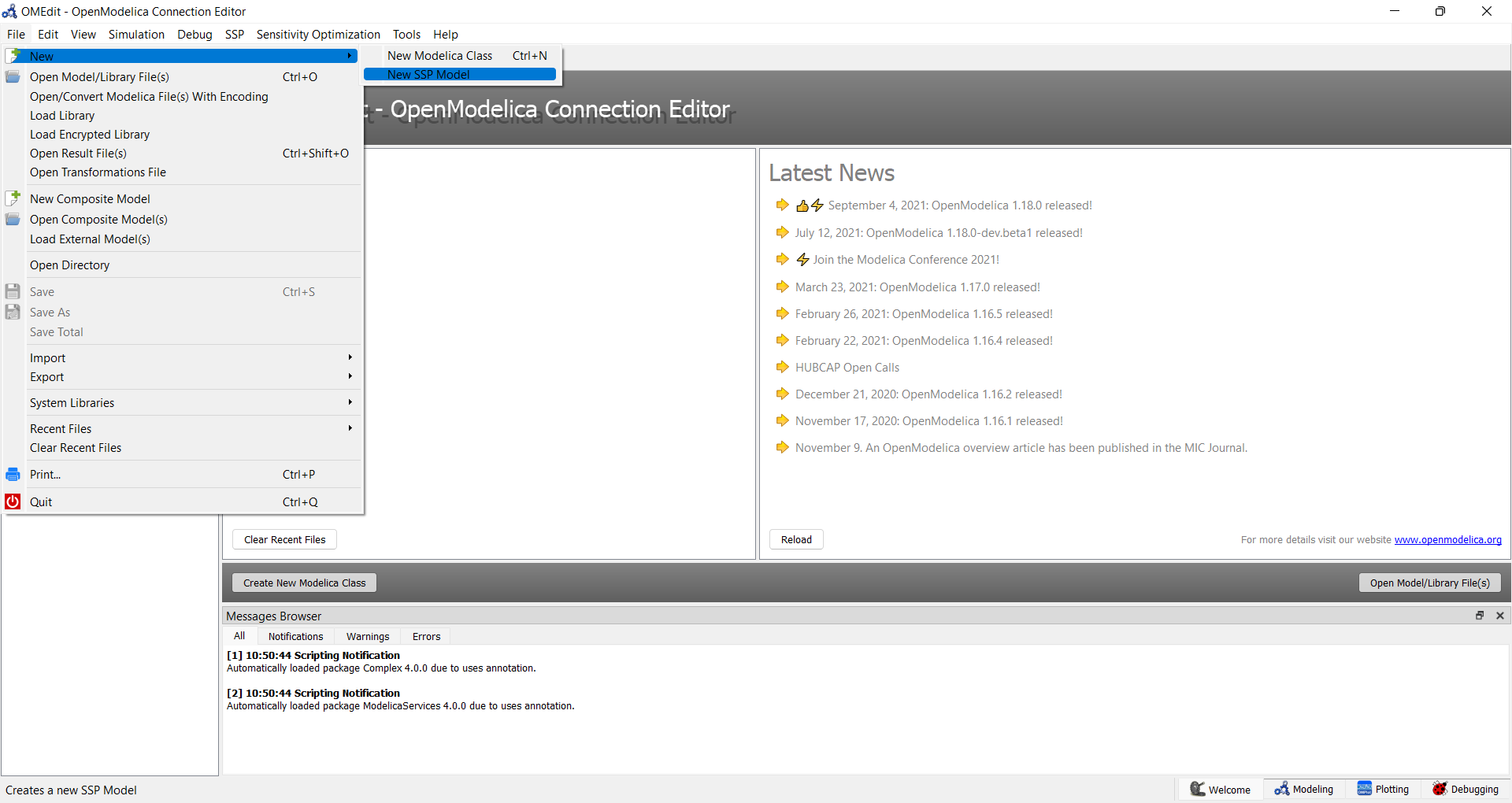
Figure 53 OMEdit: New SSP Model
A dialog opens to enter the model name and the name of the root system.
Figure 54 OMEdit: New SSP Model Dialog
Figure 55 OMEdit: Newly created empty root system of SSP model
Open SSP Model
An existing SSP file (.ssp) can be opened from File -> Open Model/Library.
If a model with the same name is already loaded, an error is reported and the
file is not loaded again.
Add System and Sub-Systems
A root system is always created together with the model. Additional subsystems
can be added inside the root system via SSP -> Add System.
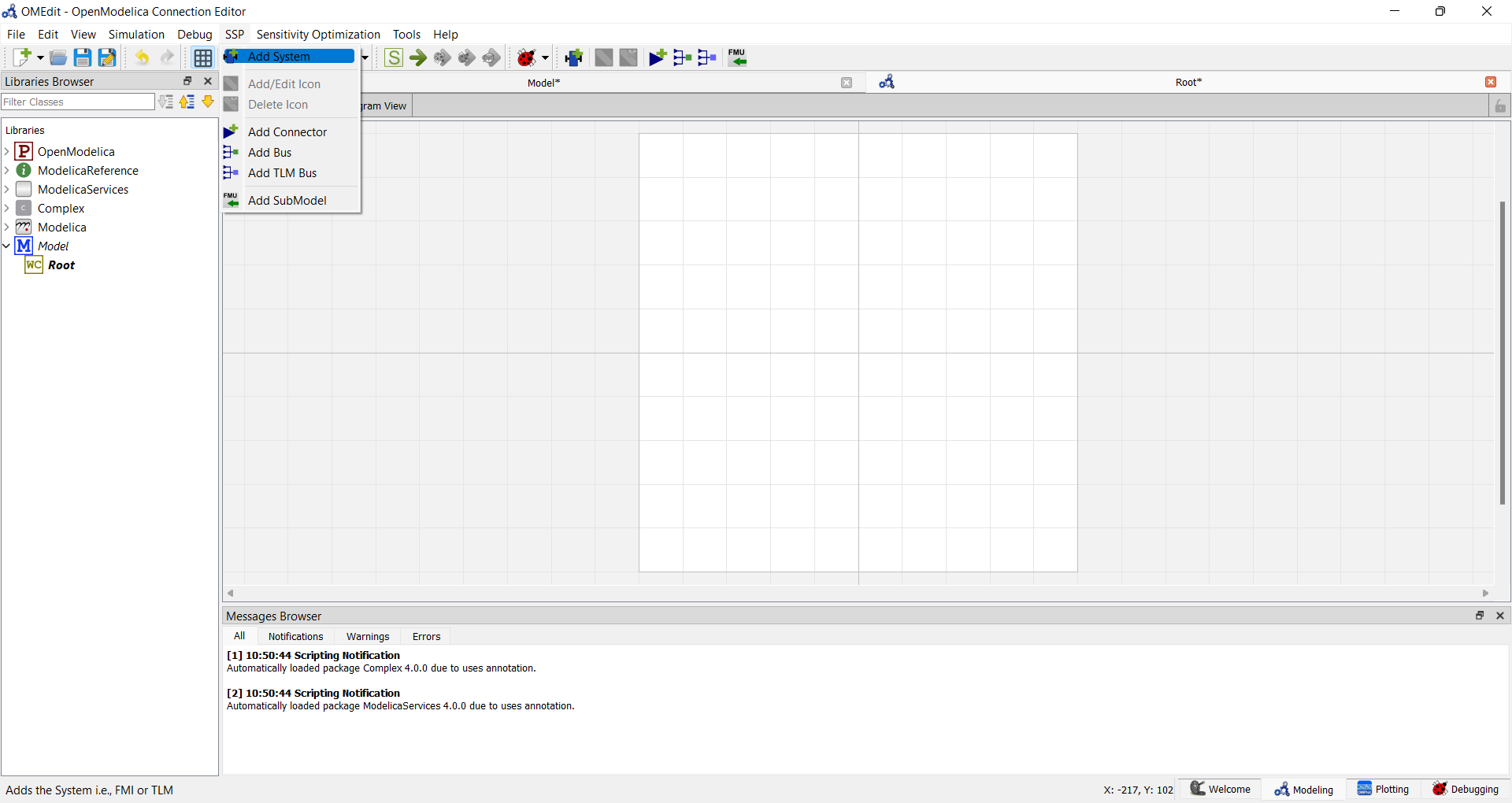
Figure 56 OMEdit: Add System
A dialog opens to enter the name of the new system.
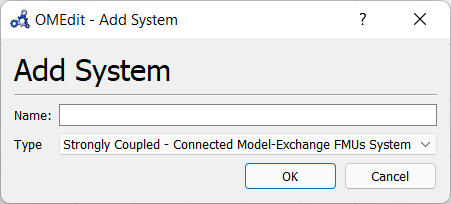
Figure 57 OMEdit: Add System Dialog
Add SubModel
A sub-model is typically an FMU, but it can also be a result file (CSV). To
add a sub-model, select the target system in the Libraries Browser and choose
SSP -> Add SubModel.
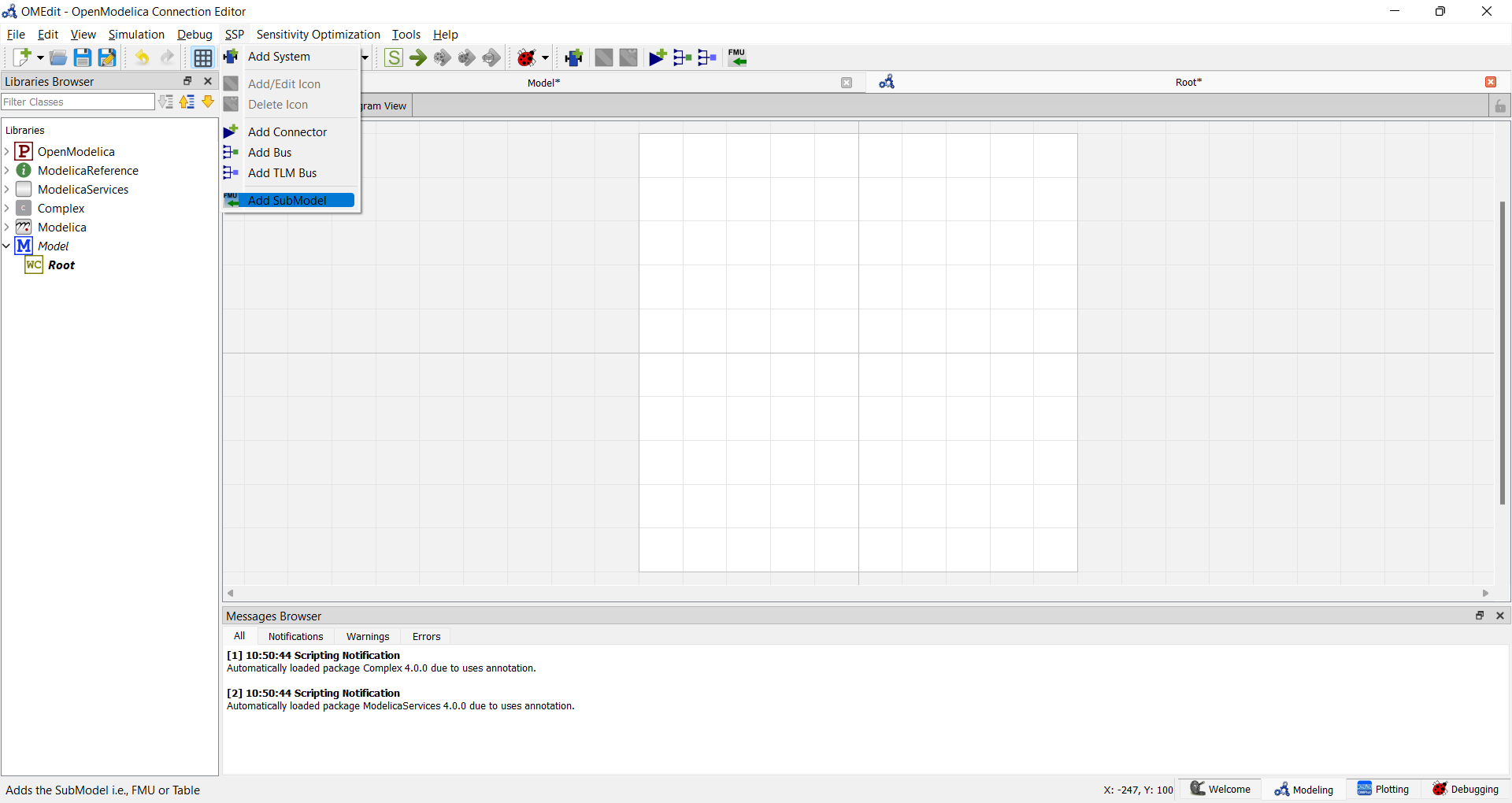
Figure 58 OMEdit: Add SubModel
A file browser opens to select an FMU (.fmu) or result file (.csv).
A dialog then opens to set the name for the new sub-model.
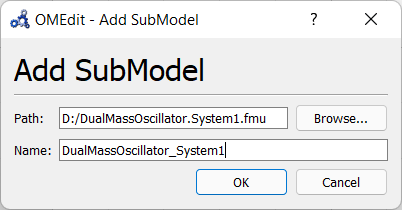
Figure 59 OMEdit: Add SubModel Dialog
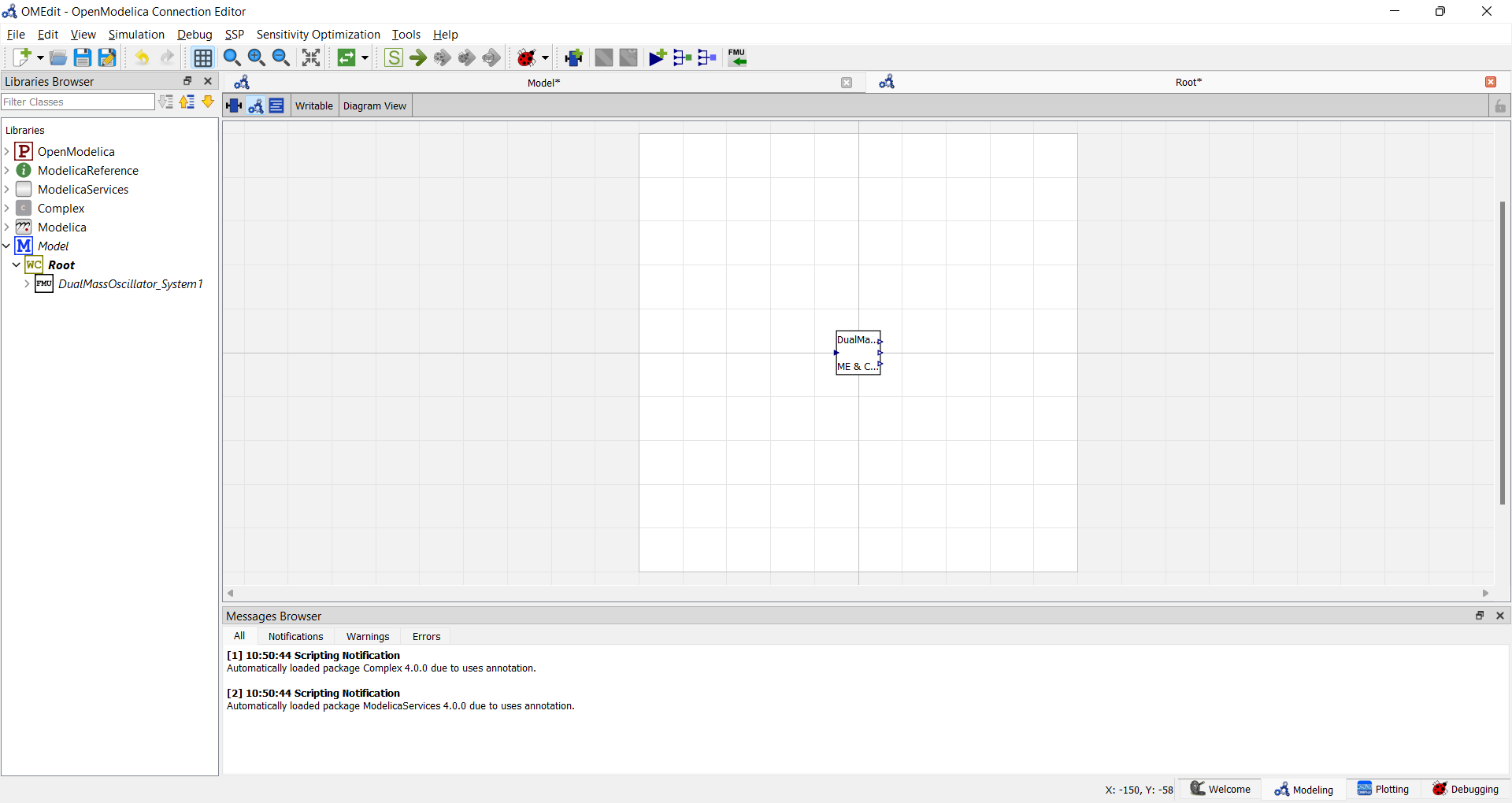
Figure 60 OMEdit: Root system with added FMU.
Replace SubModel
An existing sub-model can be replaced with a different FMU by right-clicking
on the component in the diagram view and selecting Replace SubModel from
the context menu.
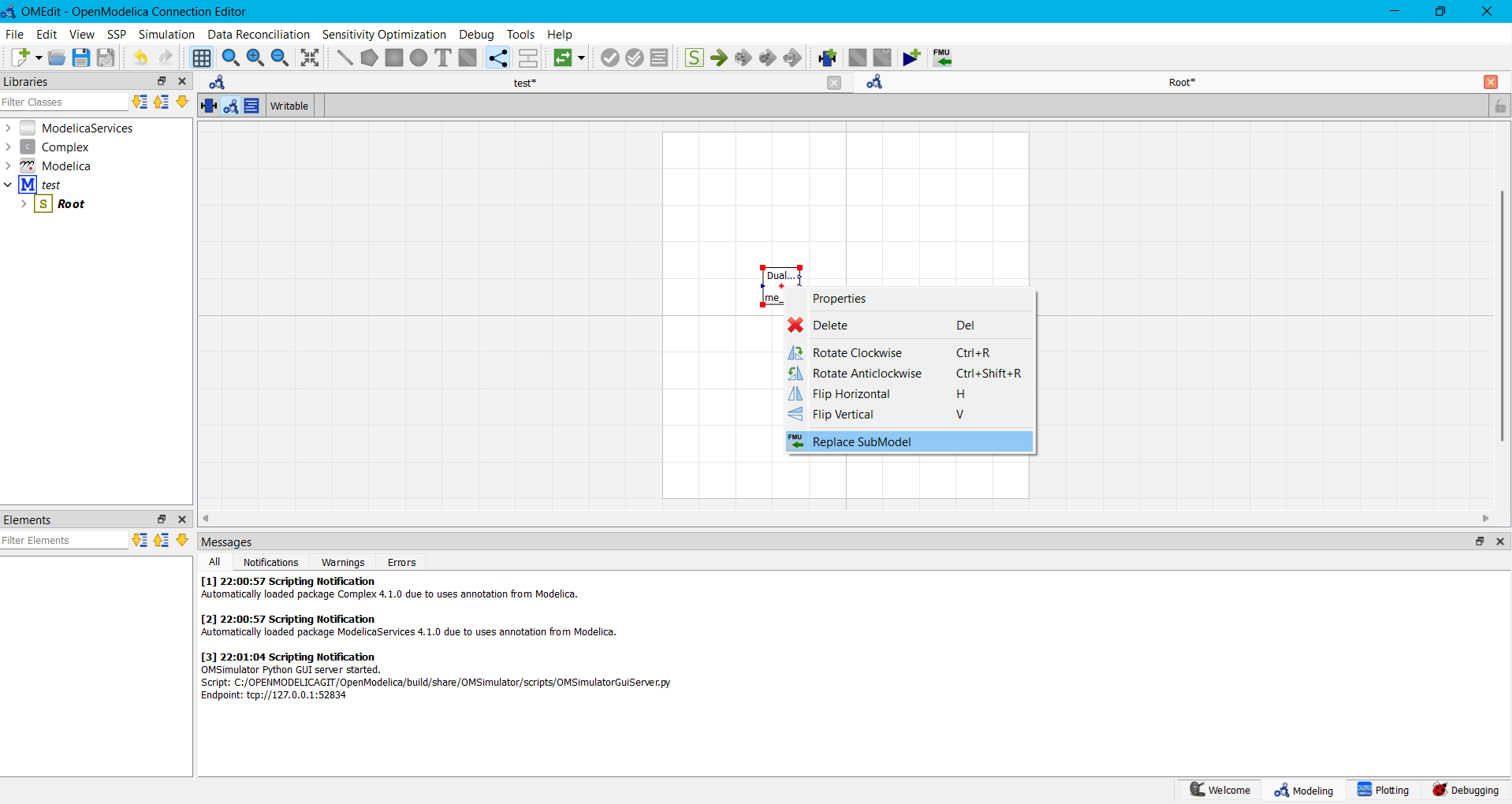
Figure 61 OMEdit: Replace SubModel Dialog.
A file browser opens to select the new FMU. The replacement is performed in two steps:
Dry run (
dryRun=true) — OMEdit first performs a dry run without making any changes to the model. It checks for interface differences between the old and new FMU, such as added, removed, or modified connectors and parameters. If any changes are detected, they are reported in the Messages Browser and a warning dialog is shown. The model remains unchanged at this stage, allowing the user to review the impact before deciding to proceed.Replacement (
dryRun=false) — If the user confirms, the replacement is carried out and all detected interface changes are applied to the model. Existing connections to removed or renamed connectors are dropped, and new connectors are available for connecting.
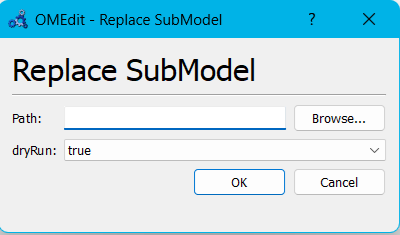
Figure 62 OMEdit: Replace SubModel context menu.
Simulation Setup
Select Simulation -> Simulation Setup to configure simulation parameters
before running. The dialog has two tabs: General and Solver Settings.
The General tab covers start time, stop time, and result file settings.
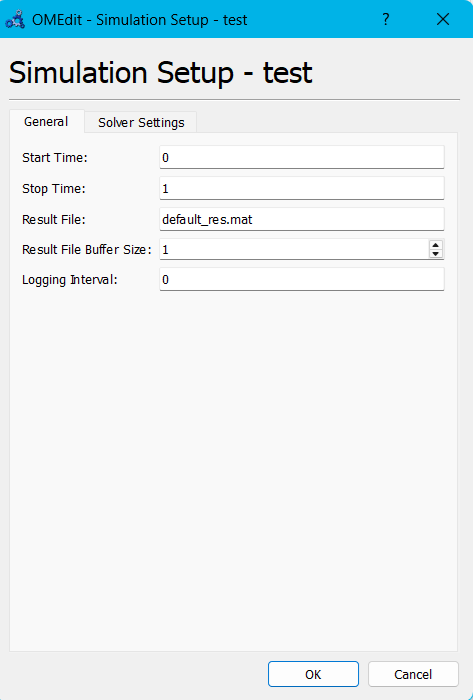
Figure 63 OMEdit: Simulation Setup — Solver Settings tab with a solver configuration.
The Solver Settings tab is divided into two parts:
Solver Configurations
This table lists the named solver configurations available in the model.
Each configuration has a name and a method. Click Add to create a new
solver configuration — a new row appears in the table with a default method
of oms-ma. The method can be changed using the combo box in the Method
column.
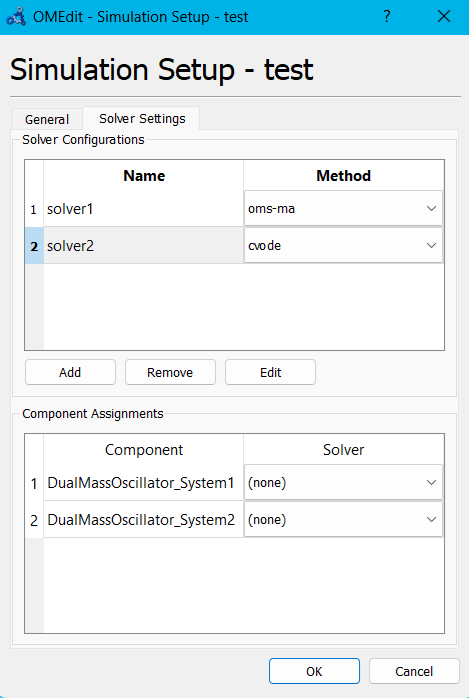
Figure 64 OMEdit: Simulation Setup — Solver Settings tab with a solver configuration.
To fine-tune a solver's numerical parameters, select the row and click Edit. This opens the Solver Settings dialog:
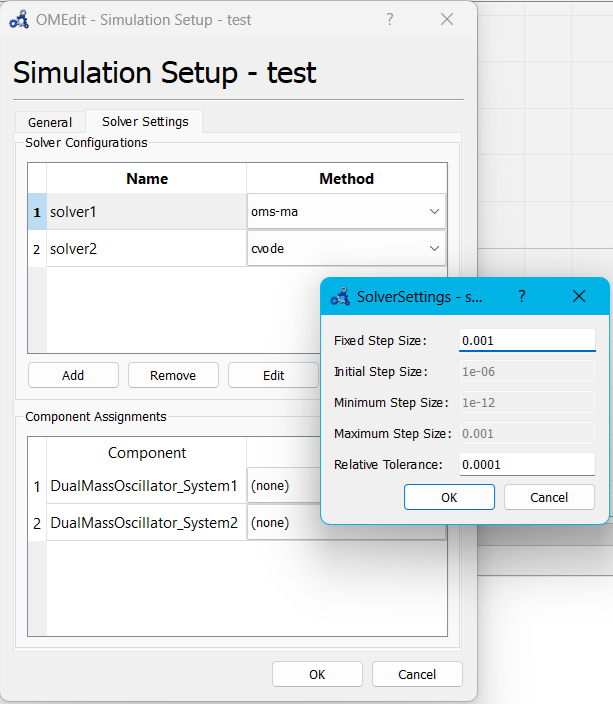
Figure 65 OMEdit: Solver Settings dialog.
The available fields depend on the solver method:
Fixed-step solvers (
oms-ma,euler) — Fixed Step Size is editable; Initial Step Size, Minimum Step Size, and Maximum Step Size are disabled.Variable-step solvers (
oms-mav,oms-mav-2,cvode) — Initial Step Size, Minimum Step Size, Maximum Step Size, and Relative Tolerance are editable; Fixed Step Size is disabled.
Click Remove to delete the selected solver configuration.
Component Assignments
This table lists all FMU components in the model. Each component can be assigned one of the named solver configurations using the combo box in the Solver column. The available solvers are filtered by the FMI kind of each component:
Co-Simulation FMUs — only co-simulation masters are selectable (
oms-ma,oms-mav,oms-mav-2).Model-Exchange FMUs — only ODE integrators are selectable (
cvode,euler).me+cs FMUs — all solvers are available.
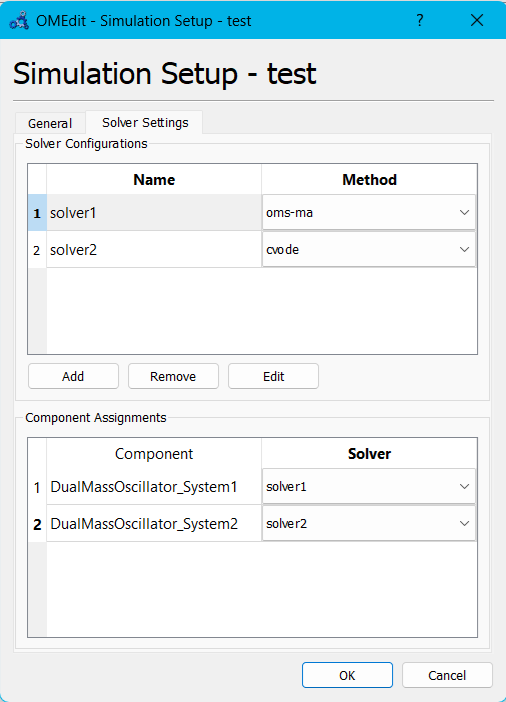
Figure 66 OMEdit: Solver Assignments in Components
Incompatible solvers are shown as disabled in the combo box with a tooltip
explaining why. If no solver is assigned, (none) is used and the
system default applies.
Simulate
Select the simulate button (green arrow) or Simulation -> Simulate to
run the SSP model. Results are streamed back in real time via the simulation
server.
Dual Mass Oscillator Example
The dual mass oscillator example from the test suite demonstrates a typical SSP workflow. The model is split into two sub-models, each exported as an FMU, and then connected in an SSP.
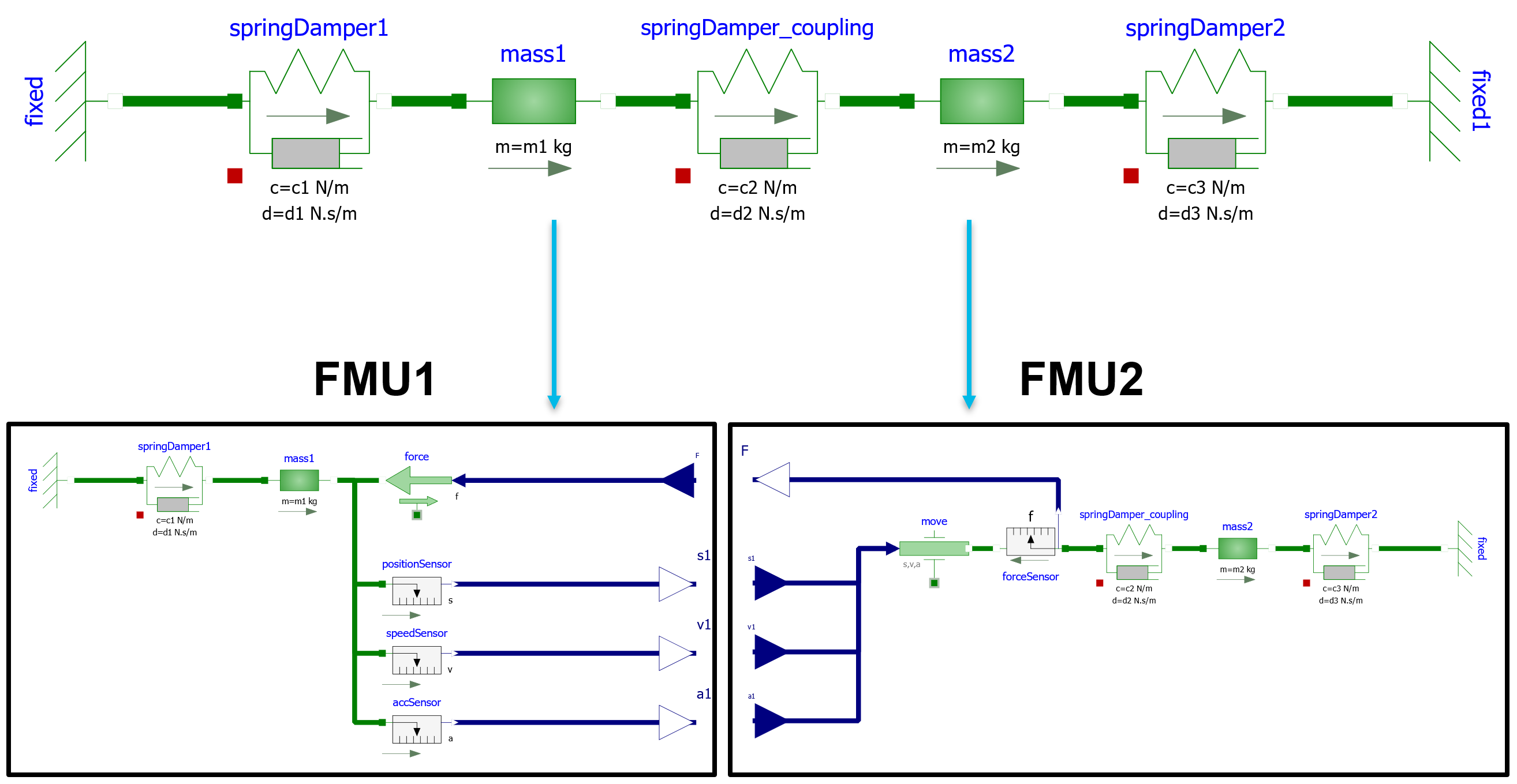
Figure 67 Dual mass oscillator Modelica model (diagram view) and FMUs
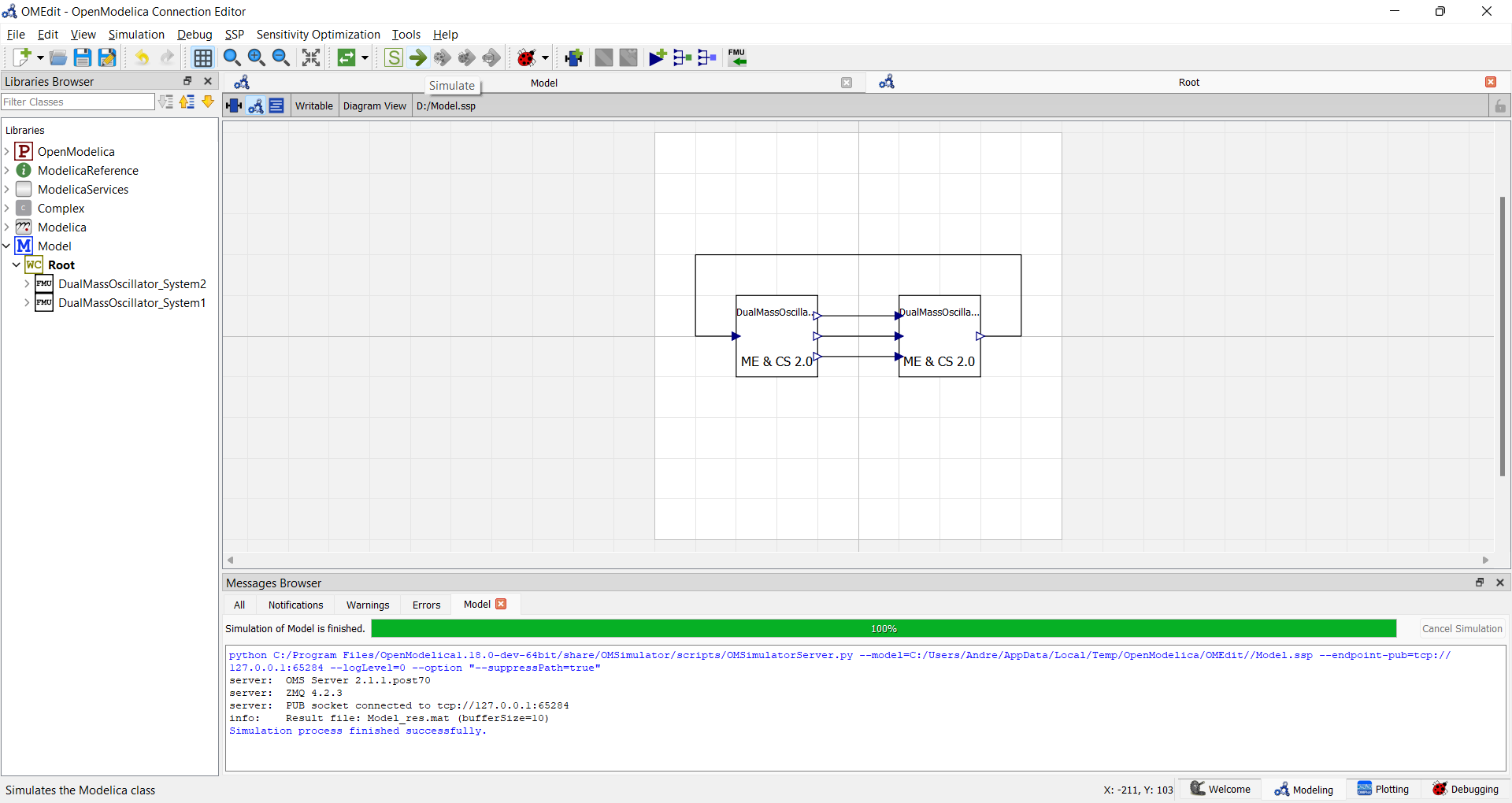
Figure 68 OMEdit: Simulate Dual Mass Oscillator SSP model
OMSimulatorGui
OMSimulatorGui is a lightweight, standalone graphical editor for SSP models, built directly on top of the OMSimulator Python API (OMSimulatorPython3). Unlike OMEdit, it has no dependency on omc or the rest of the OpenModelica compiler -- it only needs a plain OMSimulator installation with a couple of Python GUI packages on top, and it calls the same in-process Python API used by scripts, with no server process or ZMQ layer in between for editing.
It covers the everyday SSP editing workflow: building up a system structure with subsystems, FMU components and connectors, wiring them together on a diagram canvas, attaching parameter values and mappings (SSV/SSM), configuring solvers, and running a simulation with live progress and a result plot. It does not (yet) include a read-only XML/text viewer for the underlying SSD/SSV/SSM files -- see Current Limitations below.
Requirements and Enabling the Build
OMSimulatorGui is installed together with OMSimulator:
cmake -S . -B build
cmake --build build --target install
It has no compiled component -- it is pure Python, installed alongside the
OMSimulator Python package -- but it does need a couple of extra Python
packages that the core OMSimulator CLI/API does not require:
PySide6 -- the Qt widgets, the system tree, and the diagram canvas.
pyqtgraph -- the result plot.
scipy -- reading
.matresult files.
Install them into whichever Python environment OMSimulator itself runs under:
pip install -r src/OMSimulatorGui/requirements.txt
Installing with pip
The OMSimulator package on PyPI already contains the GUI: the
OMSimulatorGui Python package is installed next to OMSimulator in
site-packages.
pip install OMSimulator
The GUI's own requirements (PySide6, pyqtgraph and scipy) are not installed
by default, so the core package stays small. If you start the GUI without
them, it tells you what is missing. Install them with the gui extra:
pip install OMSimulator[gui]
Installing the extra is also enough when OMSimulator is already
installed: pip only adds the missing requirements. Then start the GUI with:
python -m OMSimulatorGui
Launching
A build with OMSimulatorGui enabled installs an
OMSimulatorGui launcher script next to OMSimulator itself:
OMSimulatorGui
This sets up PYTHONPATH/PATH the same way OMSimulator.bat/.sh
does for the CLI, then runs python3 -m OMSimulatorGui (python on
Windows). It can also be invoked directly once the
OMSimulator/OMSimulatorGui packages are importable:
python -m OMSimulatorGui
Either way, the GUI runs under whichever python comes first on PATH,
which must be one with the packages listed above. On Windows, the
OpenModelica installer bundles a Python that already has them. Start
OMSimulatorGui from OMEdit's Tools > OpenModelica Command Prompt,
which puts the bundled Python first on PATH (or OMDev's Python, if
OMDEV is set). From a plain command prompt, python may instead be
another Python installed on the machine, and the GUI then fails with an
error such as No module named 'PySide6'.
Main Window
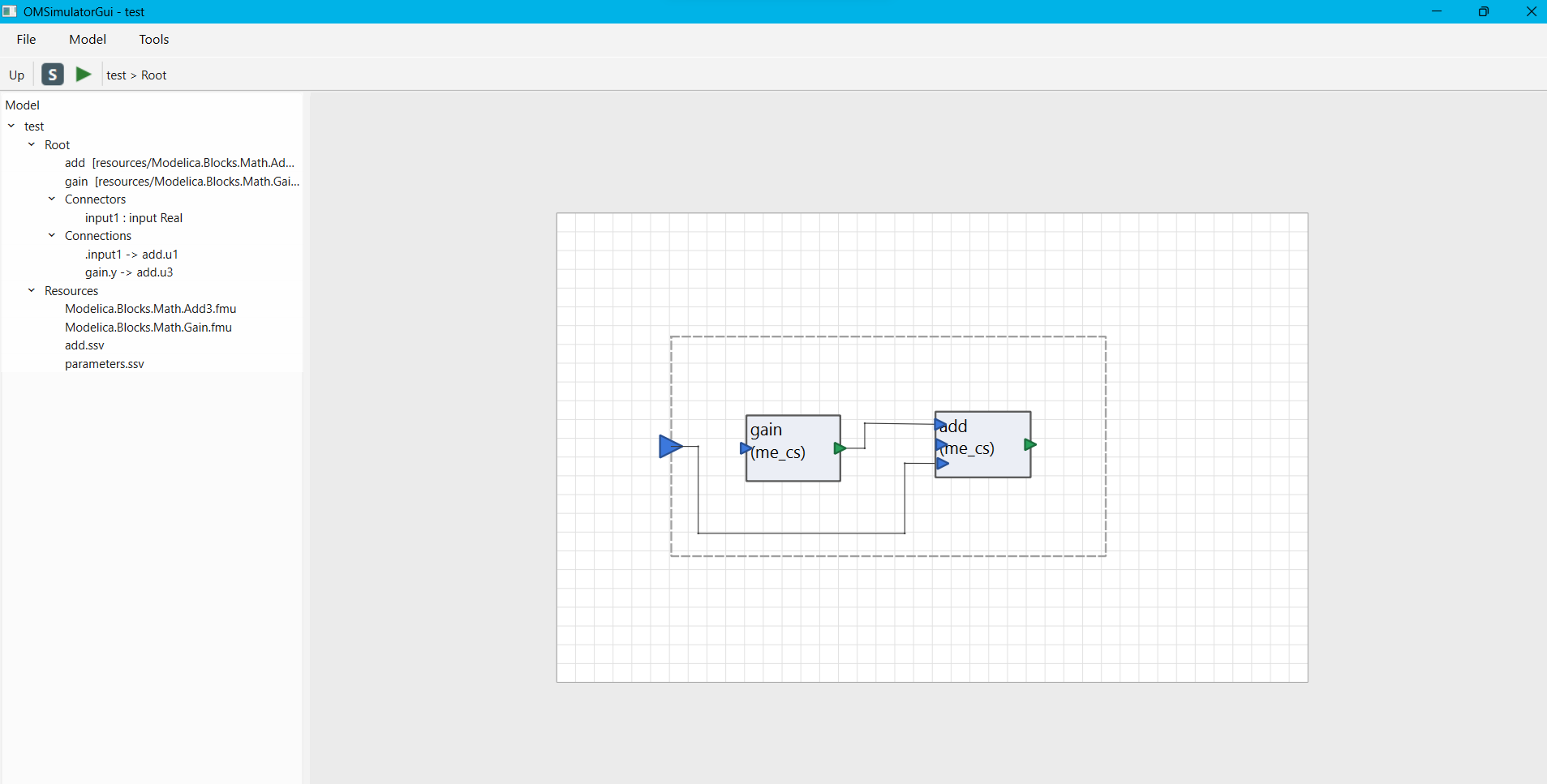
Figure 69 OMSimulatorGui: main window with a model open, showing the system tree (left), the diagram canvas drilled into the root system "Root" (right), and the breadcrumb "test > Root" in the toolbar.
The main window has three parts:
A System Tree on the left, showing every open model as its own top-level row, each with its root system, connectors, connections, parameter files and registered resources underneath.
A Diagram Canvas on the right, showing one system's contents at a time as boxes and connection lines -- systems, components (FMUs) and connectors on its boundary.
A toolbar above the canvas with an Up button (leave the current system and go back to its parent), a Simulation Settings button, a Simulate button (green arrow), and a breadcrumb showing the current position in the system hierarchy.
Three menus tie everything together:
File -- New SSP Model... (
Ctrl+N), Open... (Ctrl+O), Save As... (Ctrl+Shift+S), Exit (Ctrl+Q).Model -- Simulation Settings..., Variants..., Simulate (
Ctrl+R) -- all act on whichever model is currently active.Tools -- Options... (see Options (Working Directory and Command Line Options) below).
Help -- About OMSimulatorGui..., showing the running OMSimulator version (the same one
OMSimulator --versionreports).
The tree and the canvas always show the same underlying model: editing on one immediately refreshes the other.
Creating and Opening Models
File -> New SSP Model... opens a dialog asking for the model's name and the name of its root system, then creates a new, empty SSP model and opens it as a new tab in the tree.
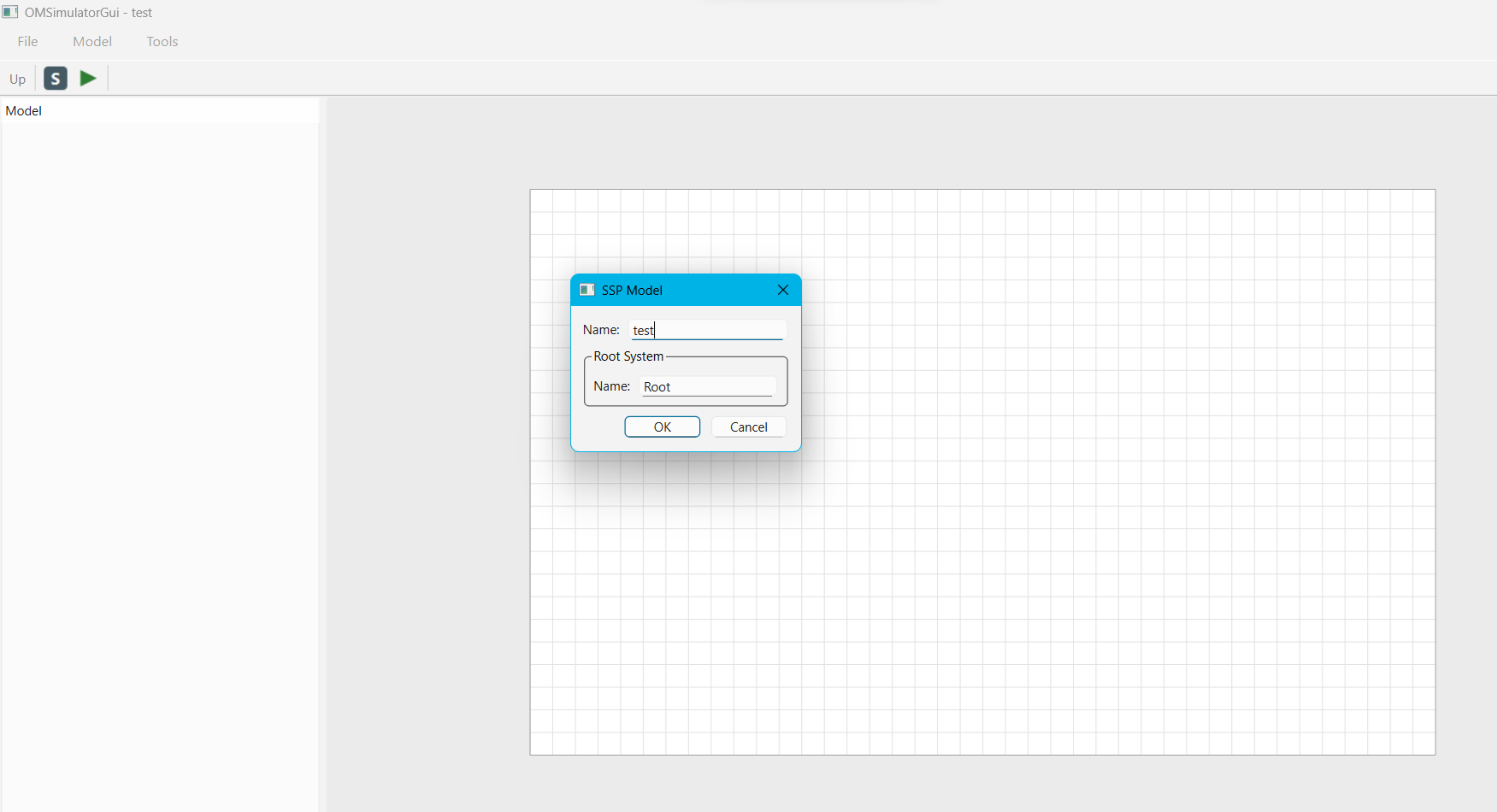
Figure 70 OMSimulatorGui: New SSP Model dialog, entering the model name and the root system's own name.
File -> Open... opens a file browser to load an existing .ssp file.
Several models can be open at the same time; each gets its own top-level row
in the tree, and the diagram canvas and toolbar always reflect whichever
model was last clicked on in the tree.
File -> Save As... exports the currently active model to a chosen
.ssp path.
Multiple models can be open side by side. To close one, select its model
row (or its root system row) in the tree and either press Delete or use
Delete from its right-click menu -- both close the whole model, not just
one part of it.
The System Tree
Each open model's row expands into its root system, which in turn shows:
Systems and Components -- nested subsystems, FMU components, and result-file lookup tables (all three added via the same Add Component... action -- see The Diagram Canvas below), each with their own Connectors/Connections/Parameter Files/Resources underneath as applicable.
Connectors -- the system's own boundary ports.
Connections -- wires between two connectors at this level.
Parameter Files -- SSV/SSM resources attached to this system or component (see Parameter Files (SSV/SSM) below).
Resources -- every file registered in the SSP's shared resource pool (FMUs, SSV/SSM files, tables, ...), shown once under the model's own row.
Right-clicking a row opens a context menu appropriate to that row's kind:
A System row offers Add System..., Add Component..., Add Connector..., Add Parameter File..., Export SSV/SSM Template..., Rename..., and Delete.
A Component row offers Properties..., Add Parameter File..., Export SSV/SSM Template..., Rename..., and Delete.
A Component Table row (a result-file lookup table, not an FMU) offers the same actions minus Properties... -- it has no editable metadata of its own.
A Connector row offers Delete.
A Parameter File row offers Edit Values..., Swap Resource..., and Remove.
A Resource row offers Remove.
A model's own top-level row offers Add Resource..., Rename..., and Delete (closes the whole model).
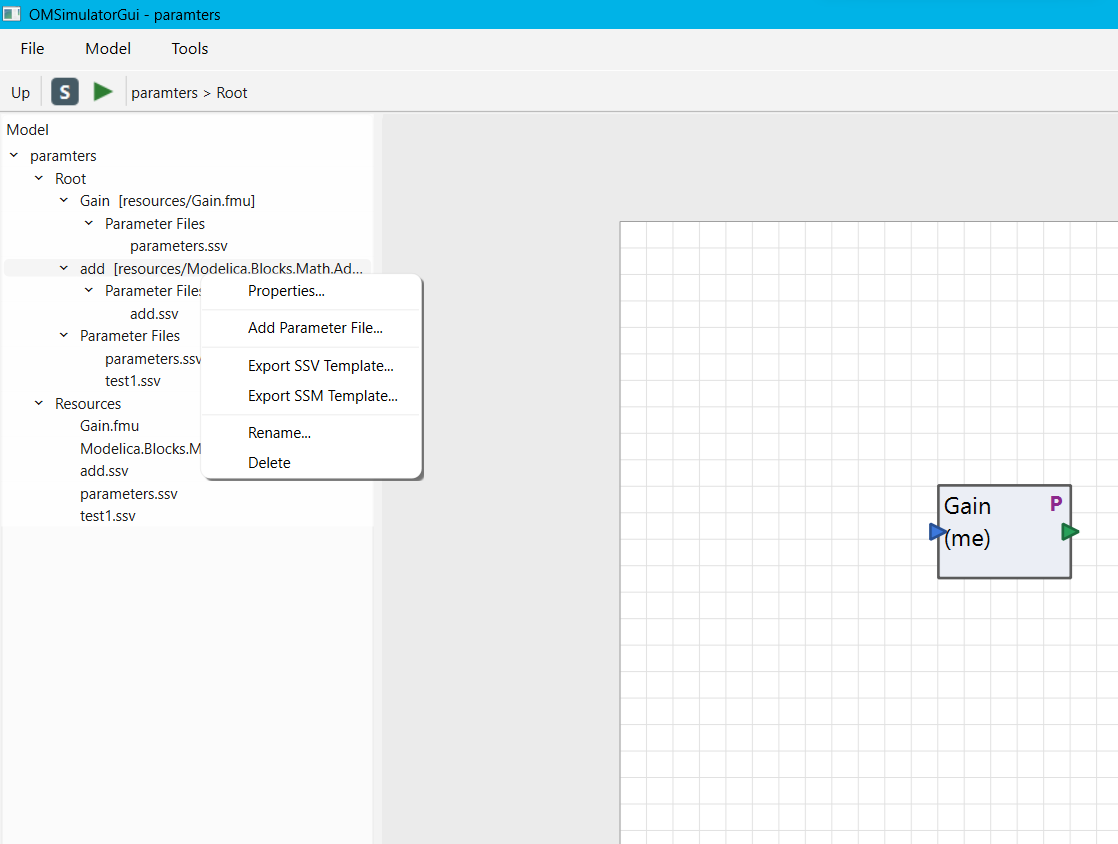
Figure 71 OMSimulatorGui: right-click context menu on a Component row ("add") in the tree -- Properties..., Add Parameter File..., Export SSV/SSM Template..., Rename..., Delete. Right-clicking the same component's box on the canvas offers the identical set of actions.
Double-clicking a Component row opens its Properties dialog; double-clicking a Parameter File row opens Edit Values. Double-clicking a Component Table row does nothing (there is no Properties dialog for one).
The Diagram Canvas
The canvas shows one system's contents at a time. Double-click a subsystem or component box to drill into it (an FMU component opens its Properties dialog instead, since it has no contents of its own; a component table box does nothing on double-click); use the toolbar's Up button, or the breadcrumb, to go back out.
Right-clicking empty canvas space offers Add System..., Add Component... and Add Connector..., placing the new element at the click position. Right-clicking an existing box offers the same system/component actions as the tree (Add Parameter File..., Export Template..., Rename..., Delete), plus Properties... for an FMU component.
Add Component... accepts either an FMU (.fmu) or a result-file
lookup table (.csv/.mat) through the same dialog and file browser --
matching OMEdit's own unified Add SubModel. Which kind is created depends
only on the file's own extension: an FMU becomes a regular Component, while
a .csv/.mat becomes a Component Table whose signals are always
read from the file's header and always given output causality (there is
nothing to configure on one -- no Properties dialog, no double-click
action, matching OMEdit).
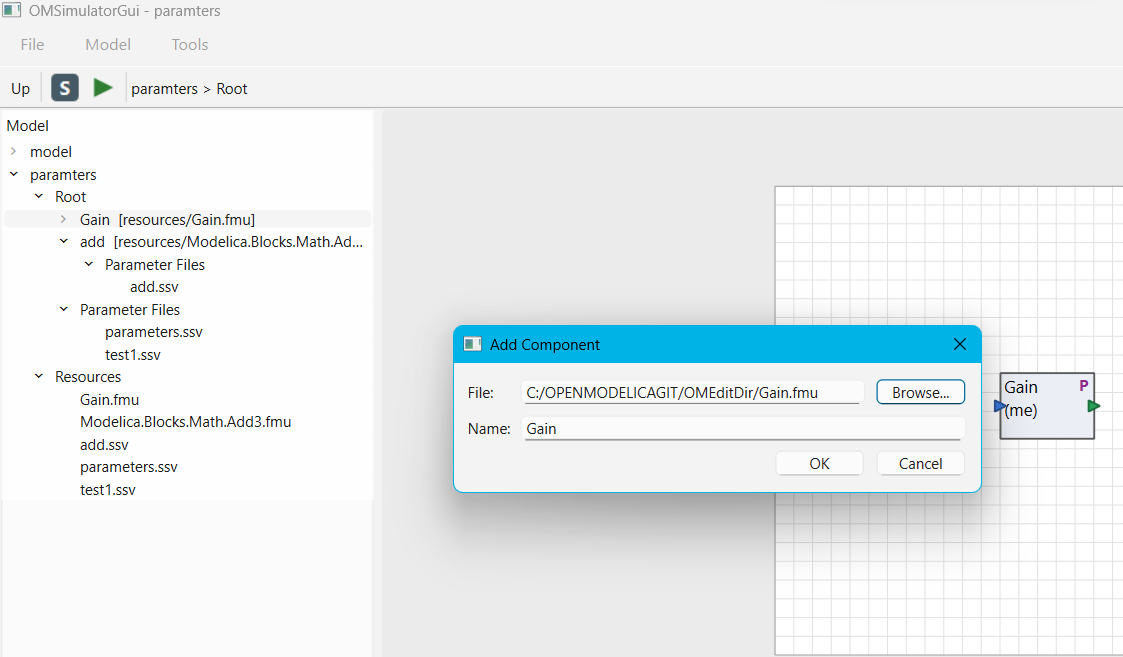
Figure 72 OMSimulatorGui: Add Component dialog -- a file (an FMU or a result-file table, via Browse...) and a name for the new component.
To connect two ports, drag from one to the other -- the connection is only created if the two connectors are causality-compatible (e.g. an output to an input), otherwise nothing happens. A connection defaults to an automatic routed path but can be reshaped by hand: drag anywhere along it to insert or move a waypoint, right-click a waypoint to remove it. Moving a box shifts any connections attached to it by the same amount, so a manually-reshaped route does not go stale.
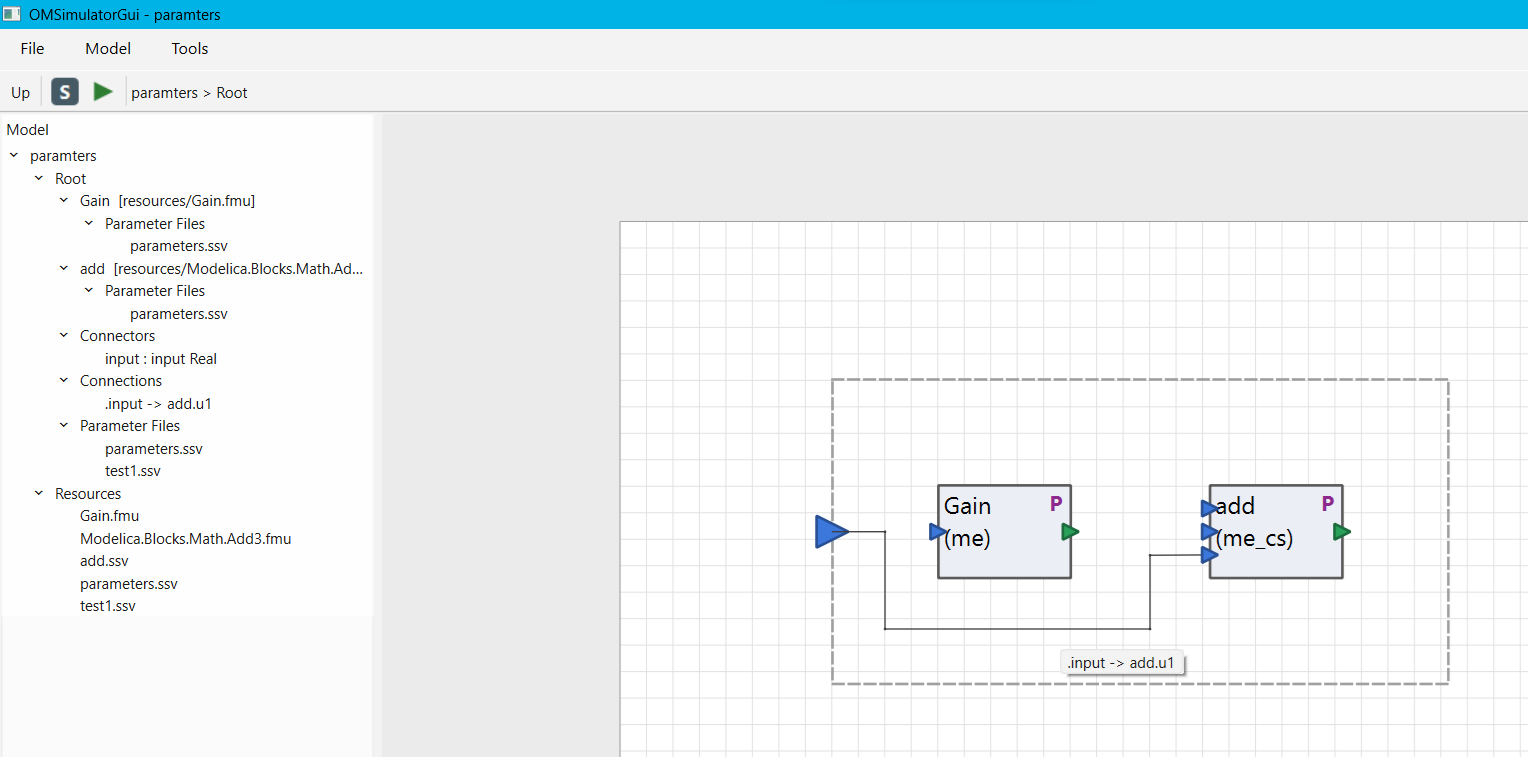
Figure 73 OMSimulatorGui: a manually reshaped connection (".input -> add.u1") routed below and around both boxes instead of a straight line, with its identity shown in a hover tooltip.
Select a box, port, or connection and press Delete to remove it, or use
Delete from its context menu. Double-clicking a connection itself has no
effect (it does not open or delete anything).
An input or output connector with no incoming connection can be given a constant value by double-clicking it directly on the canvas -- this opens a small Set Value dialog. Leaving the value field blank clears any set value (the backend then defaults it to 0); no unit needs to be entered.
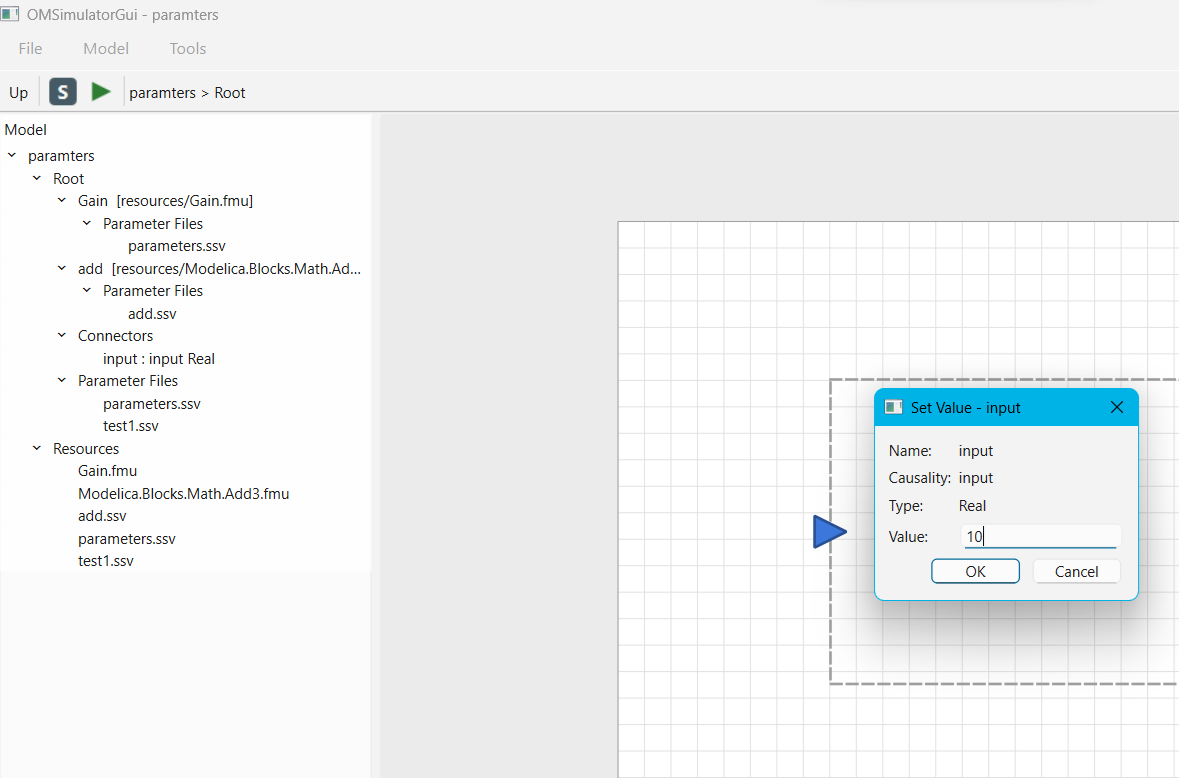
Figure 74 OMSimulatorGui: Set Value dialog for the root system's own "input" connector.
Element (Component) Properties
Double-clicking an FMU component (in the tree or on the canvas) opens its
Properties dialog, with three tabs. A component table (a .csv/
.mat added via the same Add Component... action) has no such dialog --
double-clicking one does nothing, since it has no metadata or parameters to
edit.
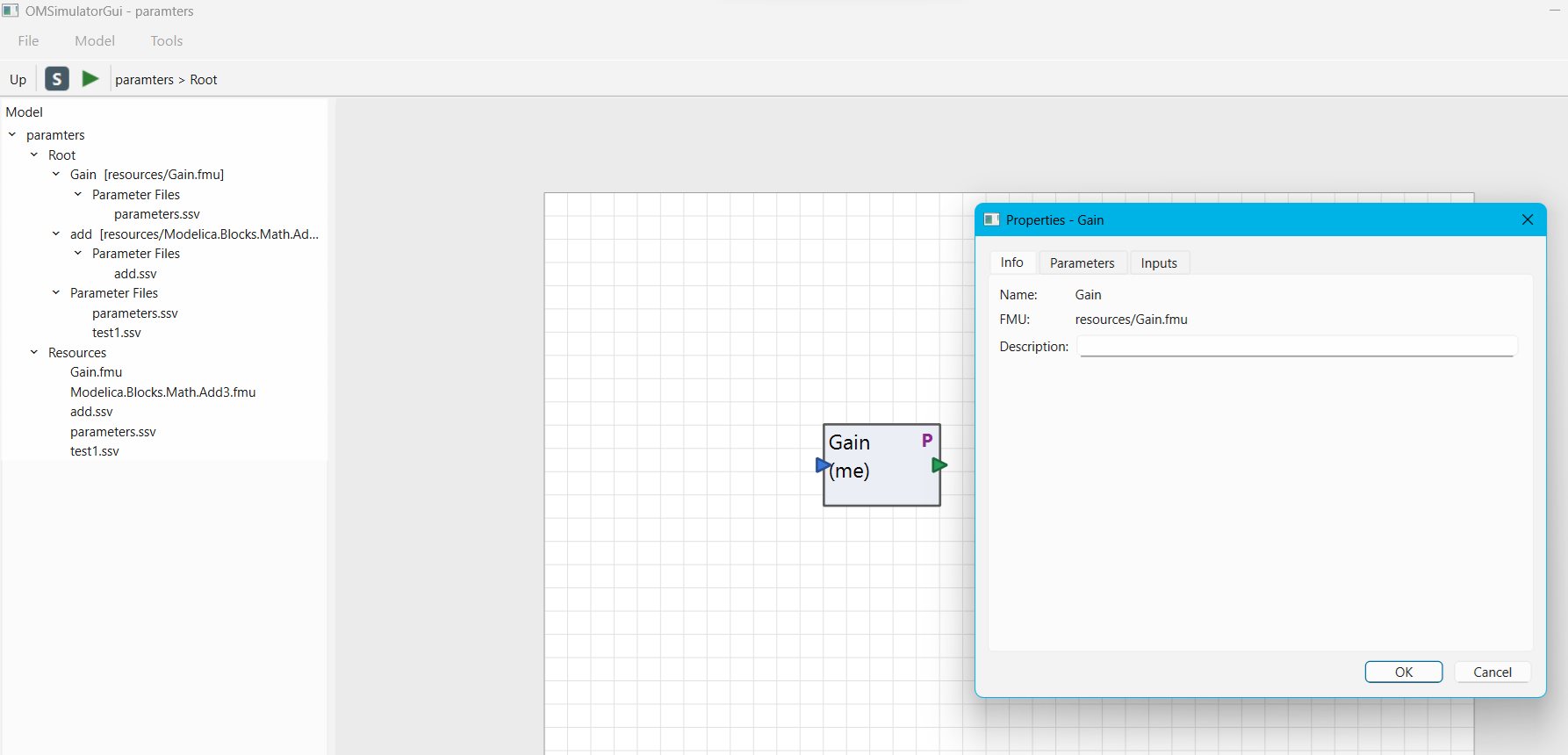
Figure 75 OMSimulatorGui: Properties dialog for the "Gain" component, Info tab -- the Parameters and Inputs tabs sit alongside it.
Info -- FMU path, FMI kind (model-exchange/co-simulation/both) and other read-only metadata.
Parameters -- editable parameter values (Real/Integer/Boolean; String parameters are not yet supported, matching OMEdit).
Inputs -- editable input values, same types as above.
Only values the user actually changes are written back to the model -- an untouched parameter keeps using whatever default the FMU itself declares.
Parameter Files (SSV/SSM)
A parameter value file (SSV) holds a named set of parameter/input values; a parameter mapping file (SSM) maps those names onto a different system or component's own connector names (e.g. renaming or rescaling a value as it crosses into a subsystem). Both are ordinary SSP resources that get attached to a system or component -- never to the "whole model" as a free-floating box, so on the canvas they only ever show as a small "P" badge on the system/component box they are attached to.
Add Parameter File... (on a System or Component row, or its canvas box) opens a dialog to either:
create a brand-new SSV file by entering values directly, optionally also creating a companion SSM mapping (which can be saved empty, to be filled in later), or
browse to an existing
.ssv/.ssmfile on disk, orpick a resource already registered in the SSP (see Resources below) instead of creating or browsing a new one.
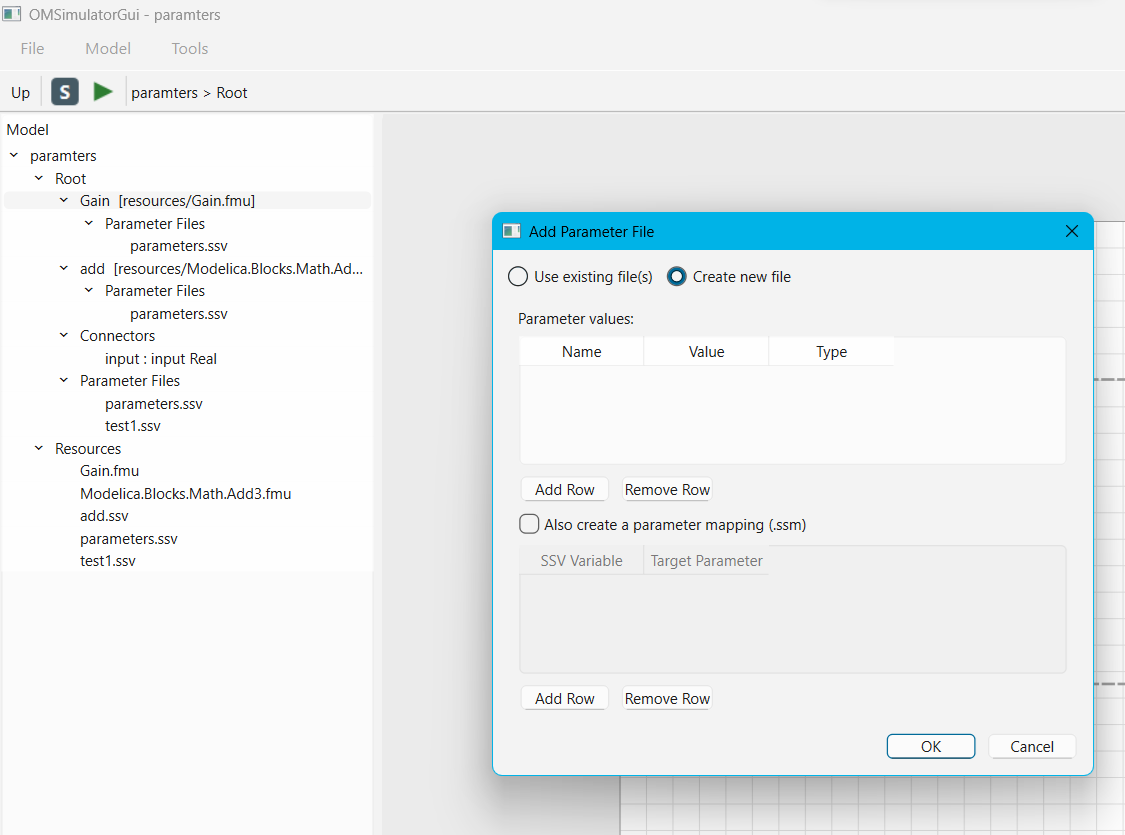
Figure 76 OMSimulatorGui: Add Parameter File dialog in "Create new file" mode -- a Name/Value/Type table for the SSV, plus an optional "Also create a parameter mapping (.ssm)" table underneath.
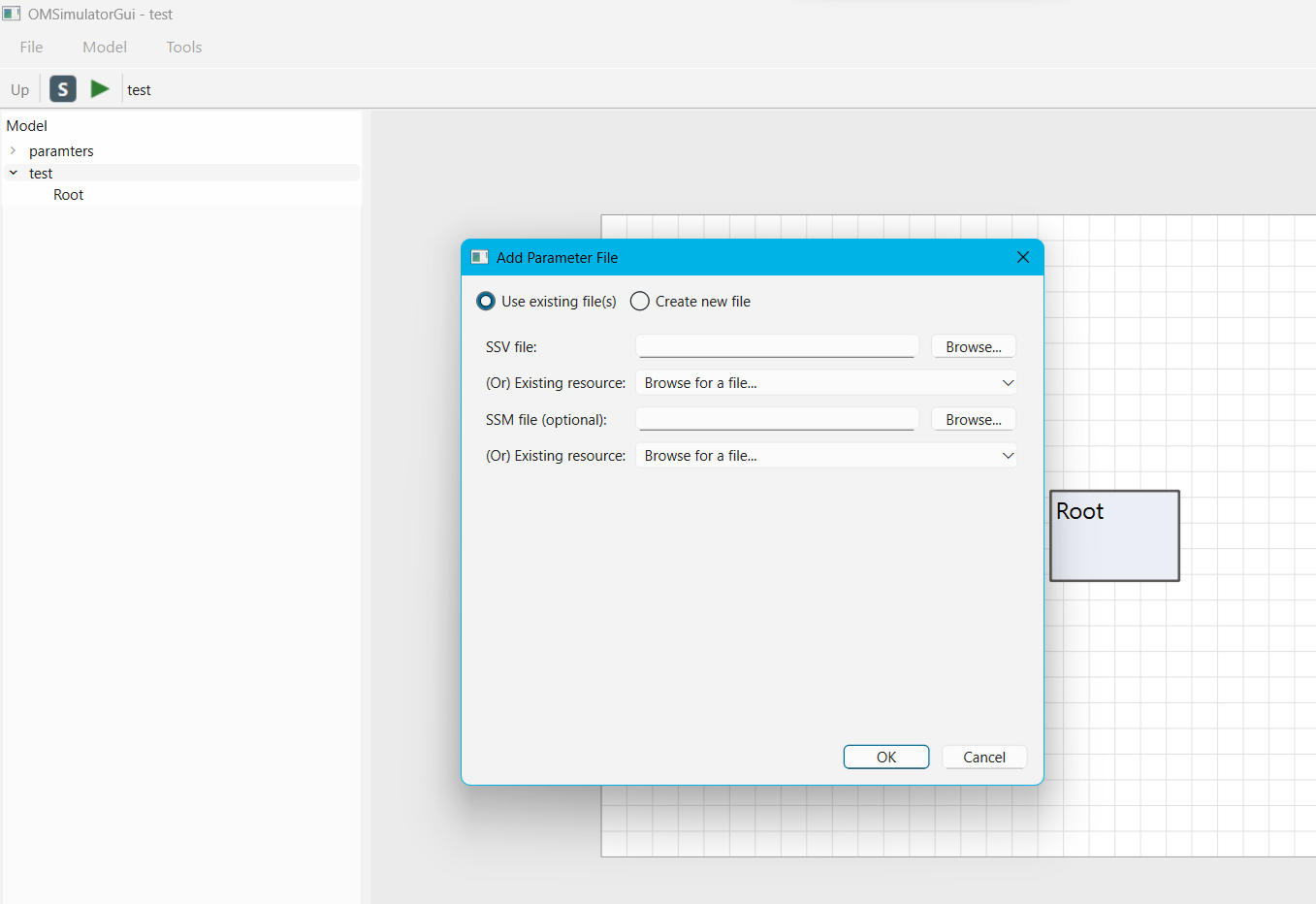
Figure 77 OMSimulatorGui: Add Parameter File dialog in "Use existing file(s)" mode -- an SSV file (with an "(Or) Existing resource" combo above it) and an optional SSM file, each browsable or pickable from the SSP's own registered resources.
Edit Values... (double-click a Parameter File row, or its badge on the canvas) reopens the attached SSV's own values for editing, and can also attach or repoint the companion SSM the same way Add Parameter File does (create new / browse / pick an existing resource).
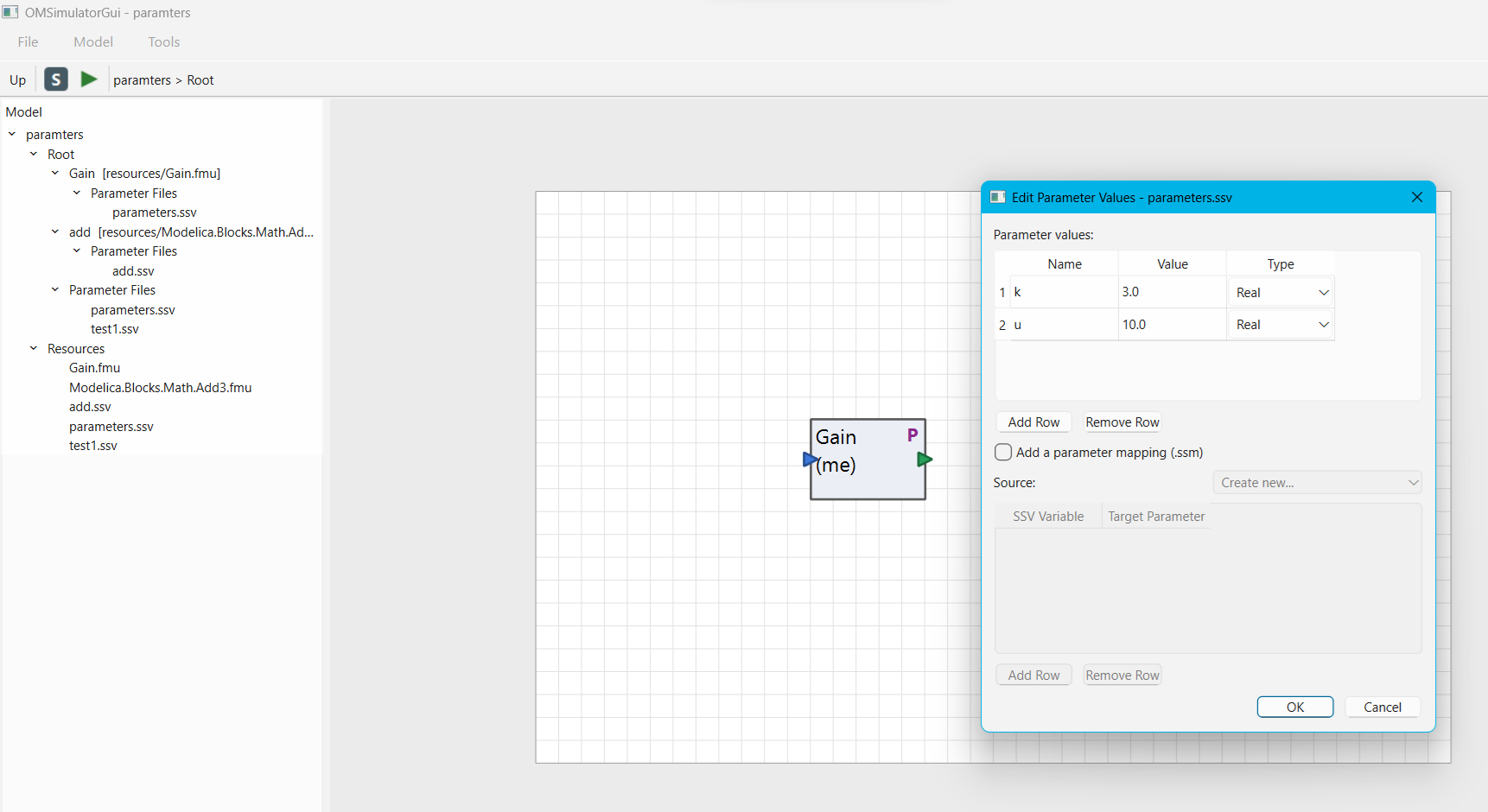
Figure 78 OMSimulatorGui: tree with each system/component's own "Parameter Files" group expanded, the "P" badge on the "Gain" box on the canvas, and the Edit Parameter Values dialog reopened on it -- with the "Add a parameter mapping (.ssm)" checkbox and Source picker visible underneath the values table.
Swap Resource... re-points an already-attached SSV reference at a different, already-registered SSV resource, without touching its values -- useful for switching between two alternative presets that were both added via Add Resource beforehand. Swapping drops any attached SSM mapping (a warning is shown first if one is present), since the mapping is specific to the file being swapped out.
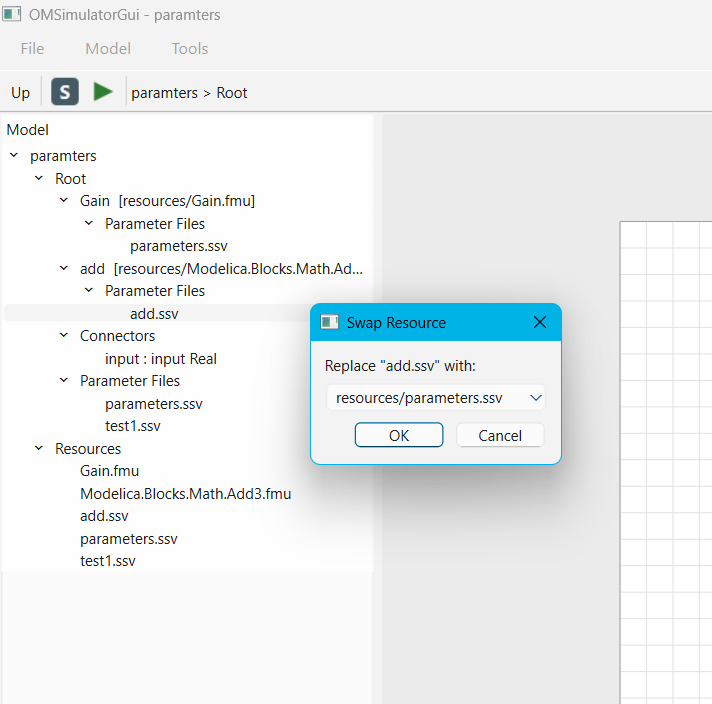
Figure 79 OMSimulatorGui: Swap Resource picker, replacing "add.ssv" with another
already-registered .ssv resource.
Export SSV Template.../Export SSM Template... (on a System or Component
row) writes a ready-made external file listing every parameter/connector
target reachable under that row -- an SSV template with each target's
current value, or an SSM template with every target listed with an empty
source="" for hand-editing. Neither of these attaches anything to the
model; they are a scaffold to hand-edit externally and bring back in later
via Add Parameter File's "pick an existing resource" option.
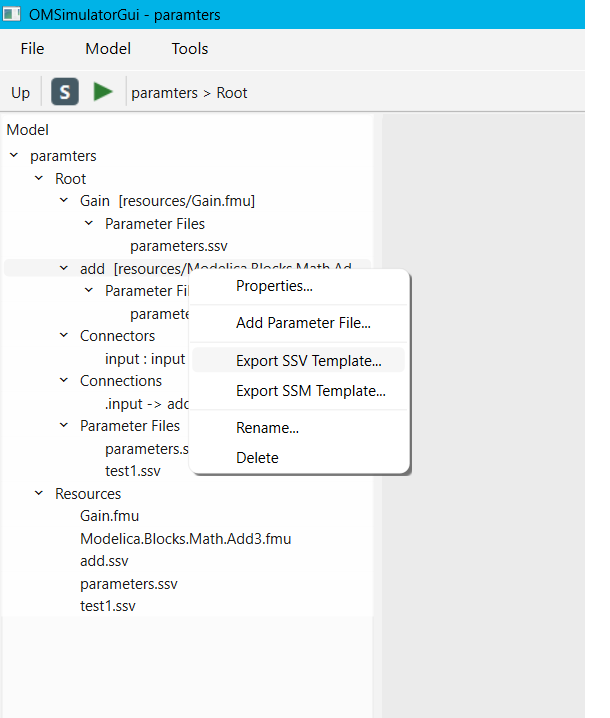
Figure 80 OMSimulatorGui: Export SSV Template.../Export SSM Template... on a Component row's context menu. Picking either one opens a standard Save File dialog, pre-filled with a default name.
Resources
Every FMU, SSV/SSM file, or other resource referenced anywhere in the model is registered once in the SSP's shared resource pool and listed under the model's own Resources group in the tree.
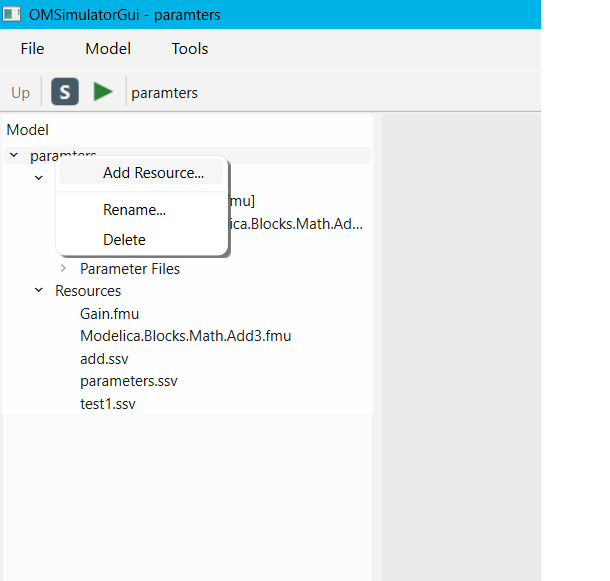
Figure 81 OMSimulatorGui: model row's right-click menu (Add Resource.../Rename.../ Delete) and the Resources group listing every file registered in the SSP.
Add Resource... (on the model's own row) registers an arbitrary file without attaching it to anything -- useful for staging a file (e.g. a lookup table for a component table) before wiring it up elsewhere, or for building up a pool of SSV/SSM presets ahead of time so Add Parameter File's/Swap Resource's "existing resource" pickers have something to offer. Remove unregisters a resource; it fails with an in-place error if something in the model still references it.
Variants
Model -> Variants... opens the SSP Variants dialog, listing every variant (alternate top-level system structure) stored in the model, letting the user activate a different one or duplicate the active one under a new name.
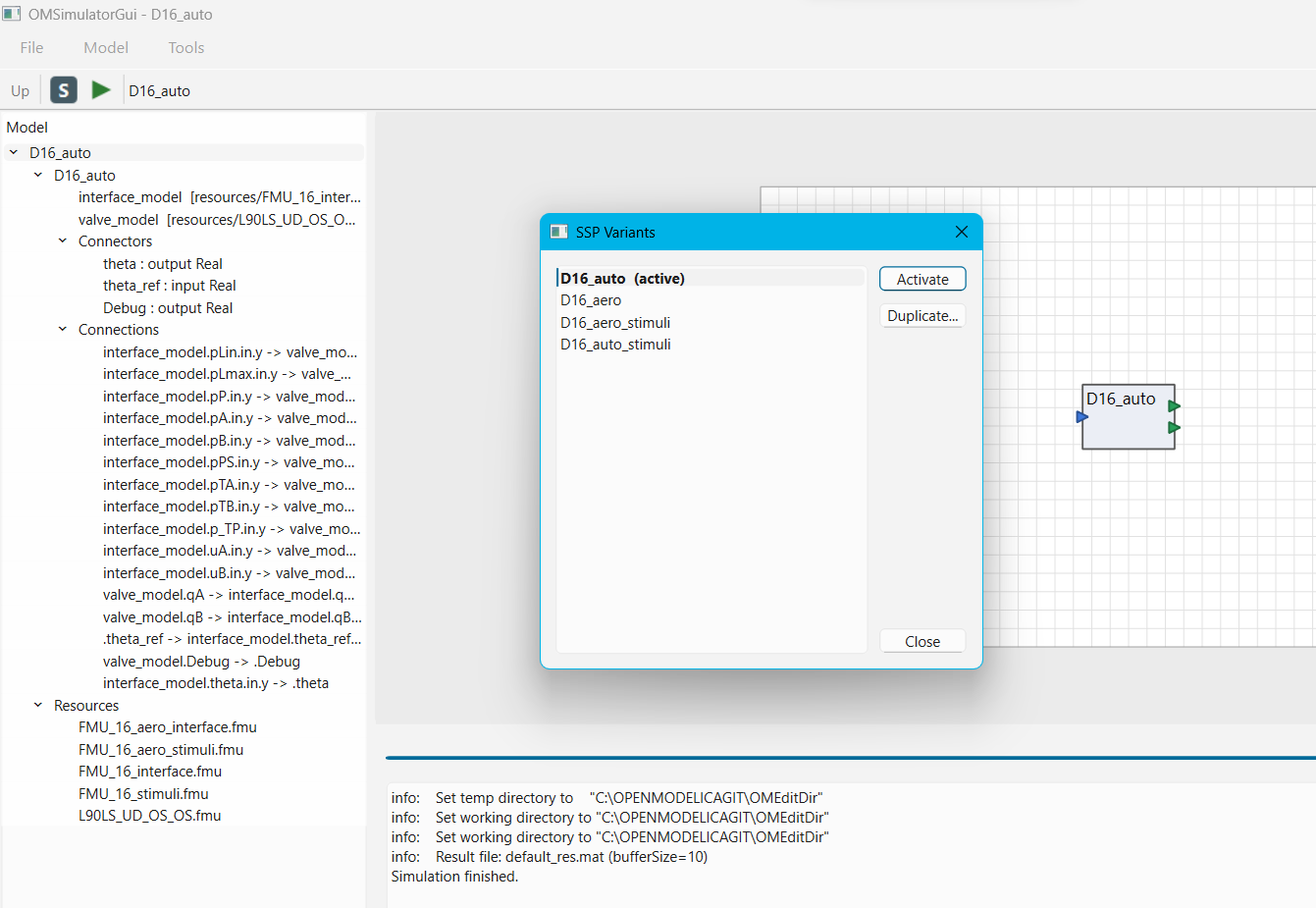
Figure 82 OMSimulatorGui: SSP Variants dialog for a model with four variants -- the active one marked "(active)", with Activate and Duplicate... actions.
Activating a variant swaps the root system the tree and canvas are built from -- the model's own tree row always tracks whichever variant is currently active by name.
Simulation Settings
Model -> Simulation Settings... (or the toolbar's "S" button) opens a per-model dialog with two tabs:
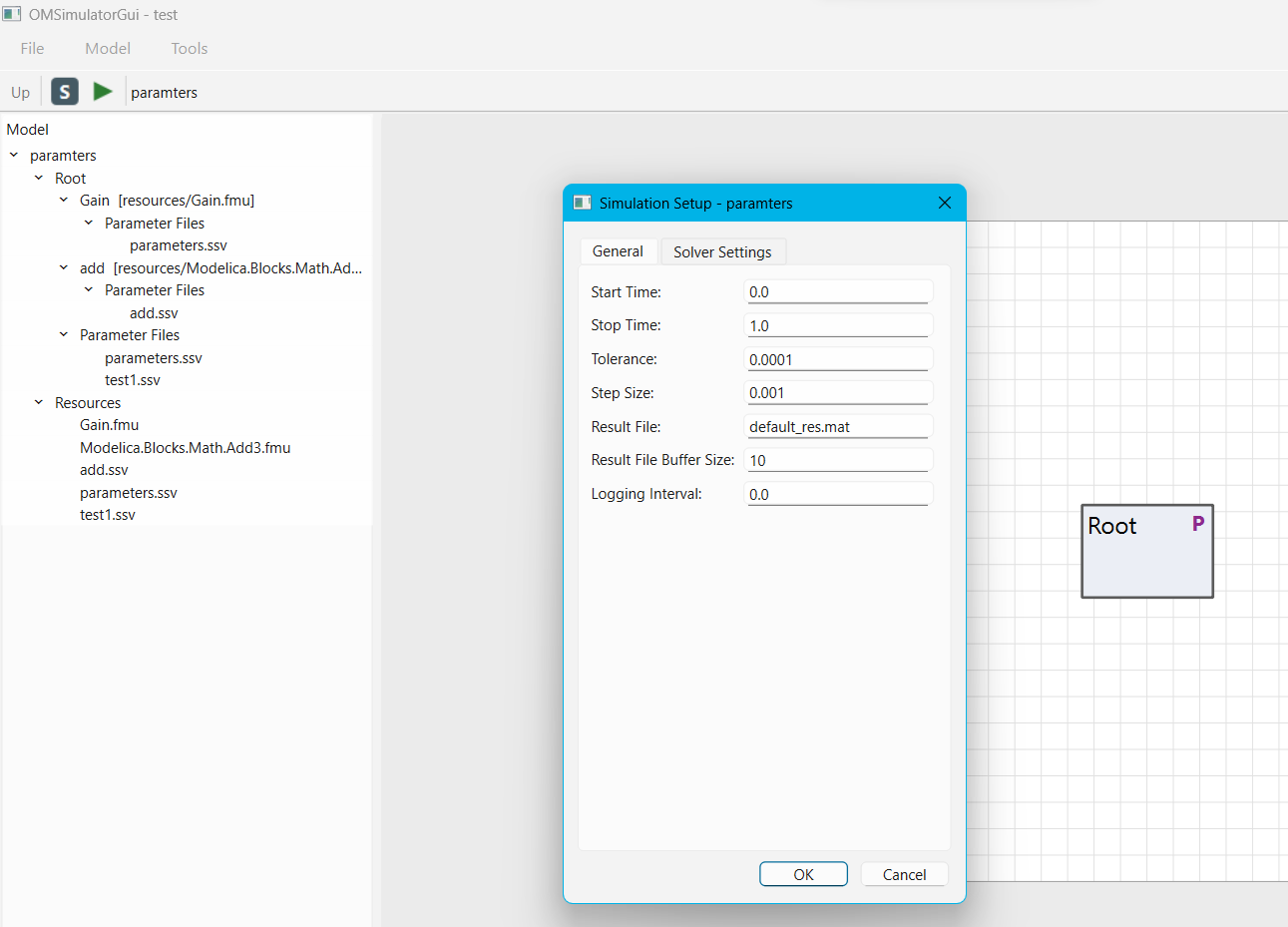
Figure 83 OMSimulatorGui: Simulation Setup dialog, General tab.
General -- start time, stop time, tolerance, (maximum) step size, result file name, result file buffer size, and logging interval.
Solver Settings -- named solver configurations (a name plus a method, e.g.
oms-ma,oms-mav,cvode,euler) and a per-component assignment table listing every FMU component in the model. A component left unassigned falls back to the automatic default for its FMI kind.
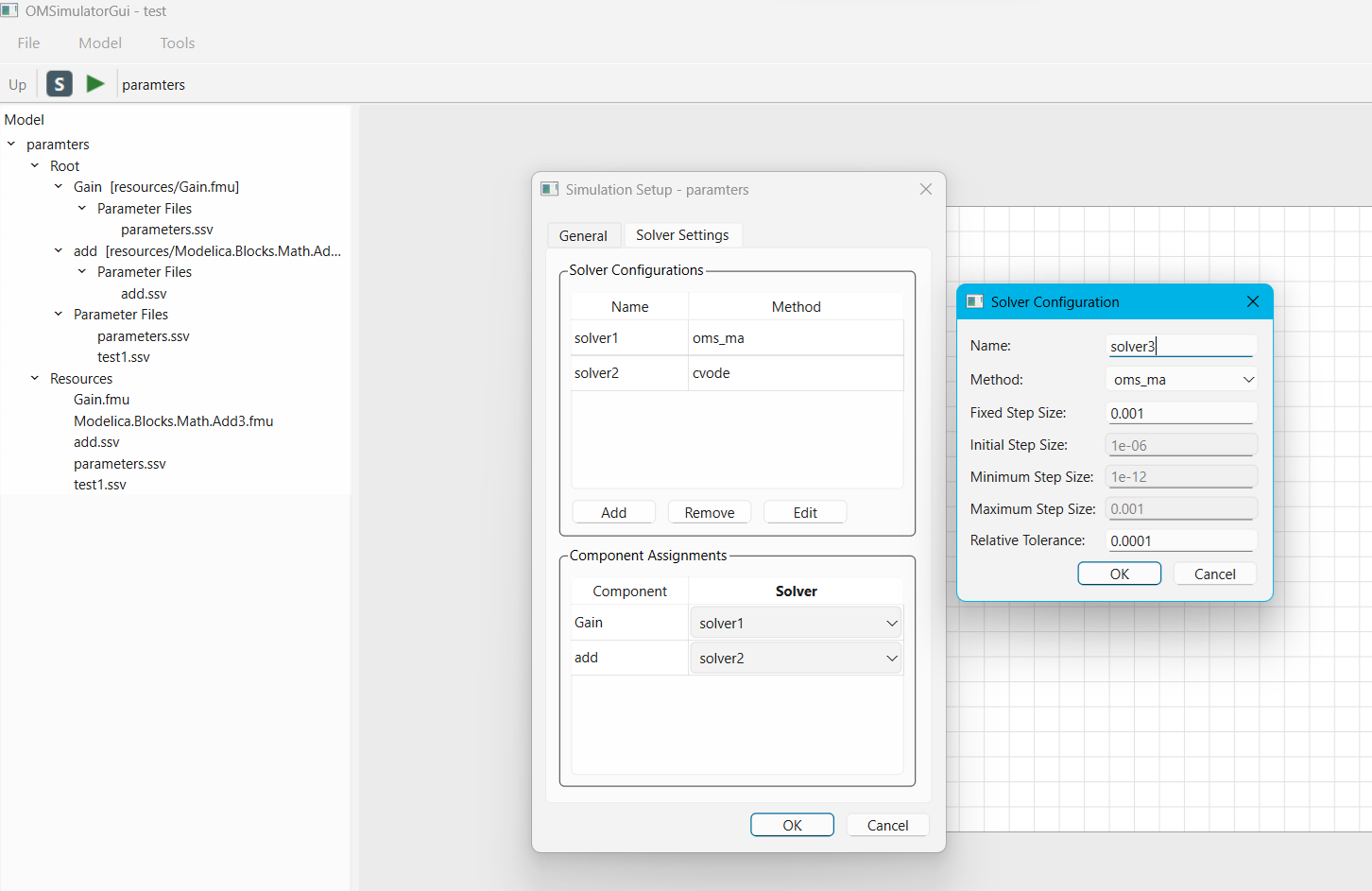
Figure 84 OMSimulatorGui: Simulation Setup dialog, Solver Settings tab -- two named solver configurations, each FMU component assigned to one -- with the Solver Configuration dialog open on top for editing a configuration's own numerical parameters (step sizes, relative tolerance).
Options (Working Directory and Command Line Options)
Tools -> Options... holds two global preferences, applied to every simulation run regardless of which model is open:
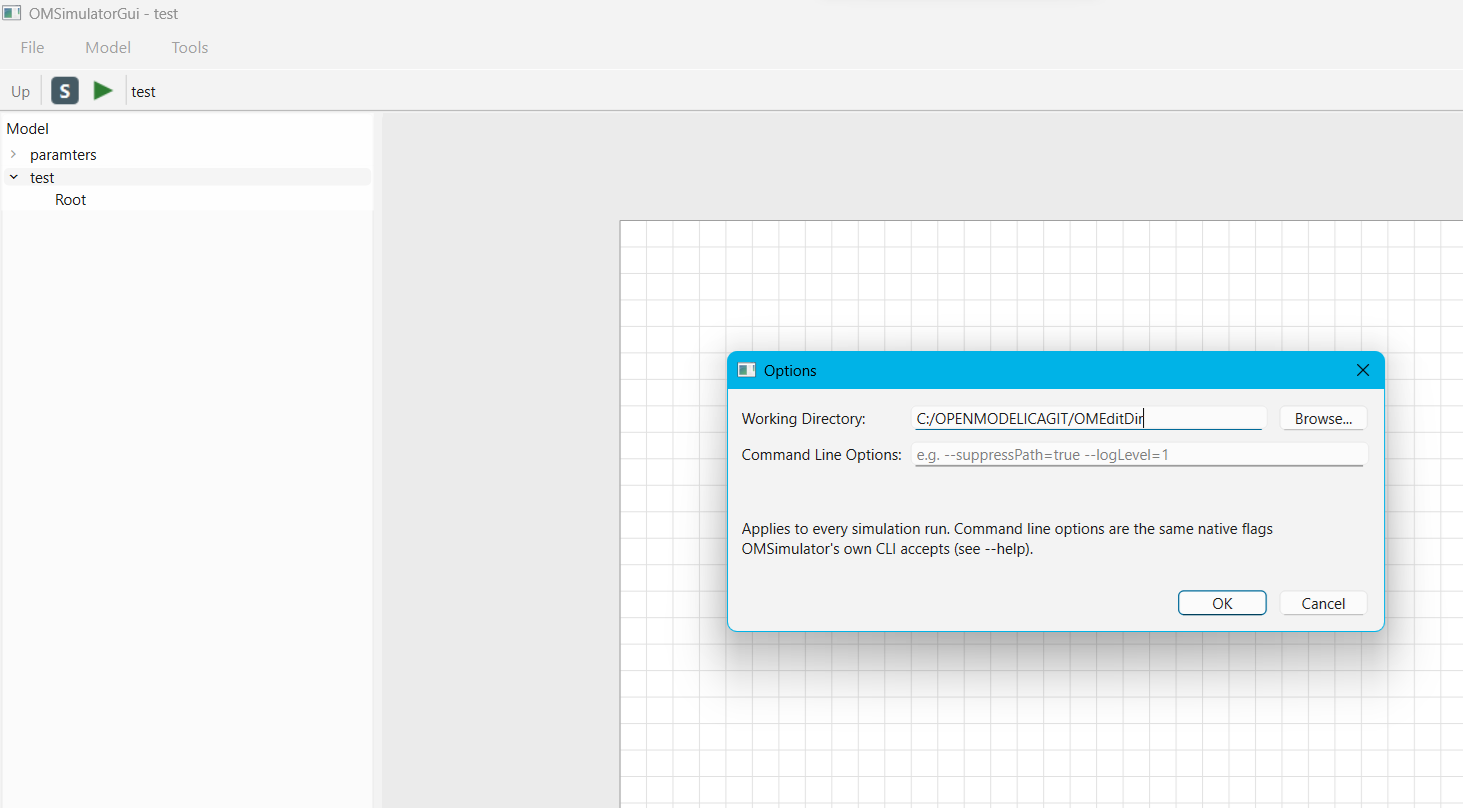
Figure 85 OMSimulatorGui: Tools -> Options dialog, with a Working Directory set.
Working Directory -- when set, every simulation exports the model into this fixed folder and runs there, so the result file lands somewhere predictable and gets overwritten on each re-run. Left blank (the default), each run instead uses a fresh temporary directory, same as before this setting existed.
Command Line Options -- free text, forwarded as one or more native flags before the model is instantiated -- the same flags and the same underlying mechanism OMSimulator's own CLI uses (e.g.
--suppressPath=true,--logLevel=1). An unrecognized flag makes the simulation fail immediately with the native flag parser's own error message.
Simulating and Viewing Results
Simulate (the toolbar's green arrow, Ctrl+R, or Model -> Simulate)
exports the active model's current state and runs it in a separate
subprocess -- crash isolation from a misbehaving FMU never takes the GUI
down with it. A progress panel appears at the bottom of the window with a
progress bar and Pause, Stop and Hide buttons; pausing and
resuming take effect immediately.
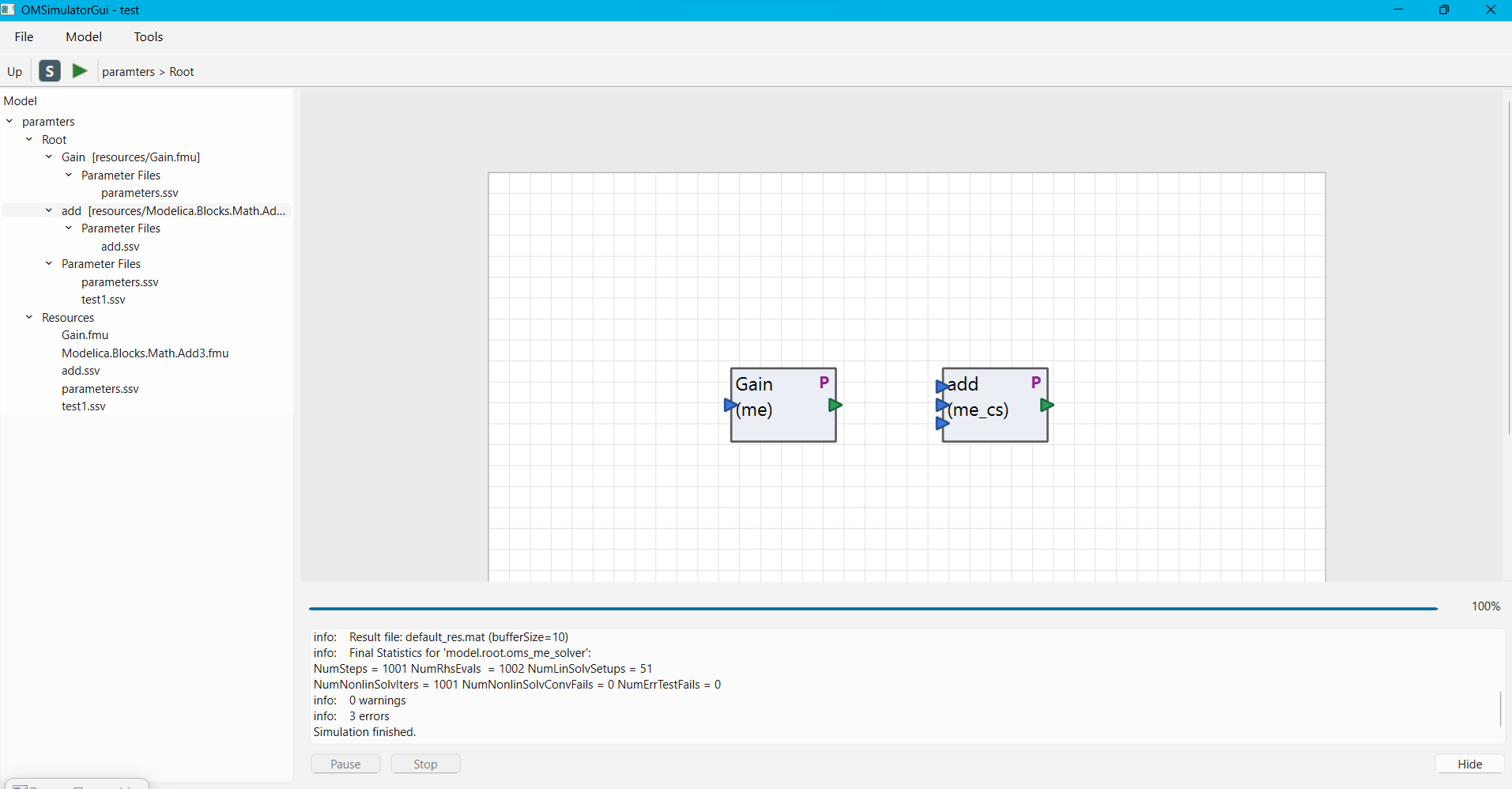
Figure 86 OMSimulatorGui: simulation progress panel after a run has finished -- progress at 100%, the solver's own log output above it, and Pause/Stop disabled now that there is nothing left to control.
When the simulation finishes, its result file (.mat or .csv) opens
automatically in a Results window: a checkable list of every signal on
the left, plotted on the right as they are checked.
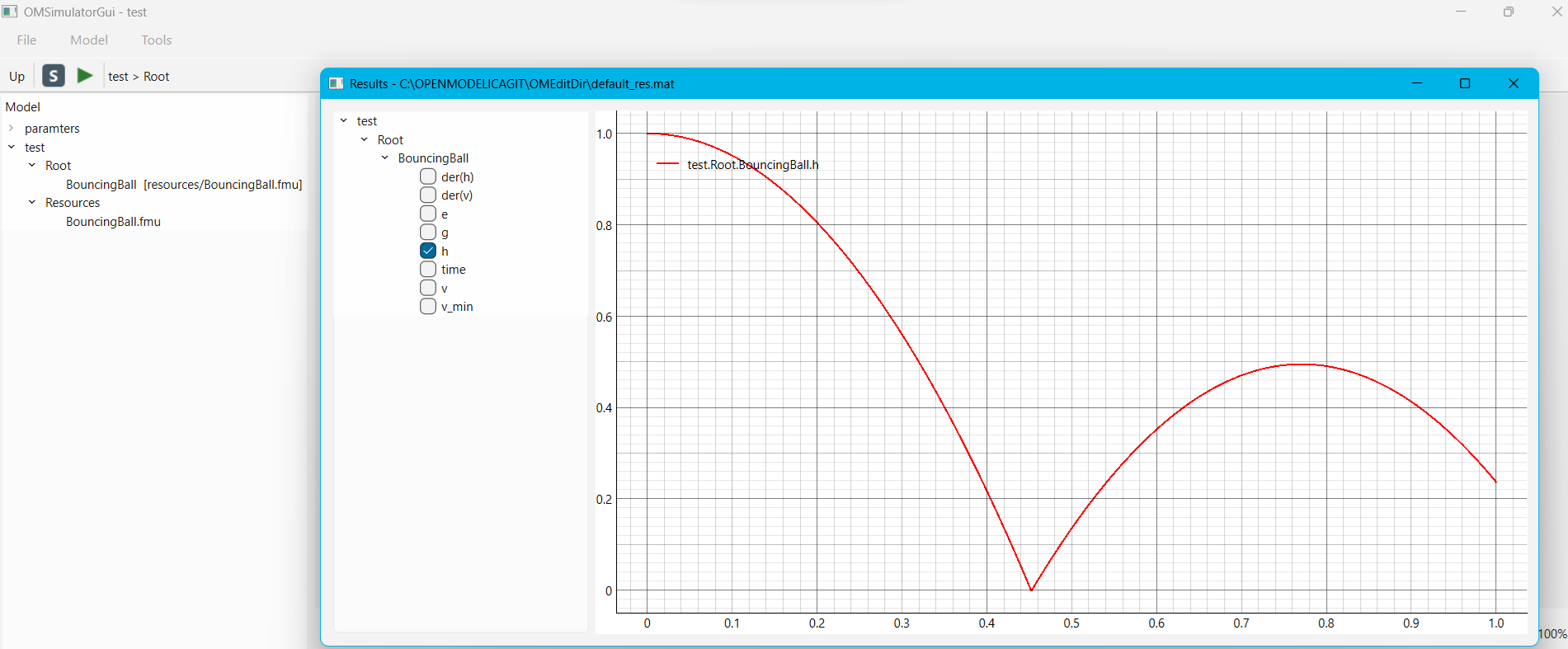
Figure 87 OMSimulatorGui: Results window for a bouncing ball model -- the "h" (height) signal checked in the tree on the left, plotted on the right.
Current Limitations
No read-only XML/text viewer for the underlying SSD/SSV/SSM files yet (planned as a low-risk, self-contained addition).
String-valued parameters/inputs are not editable (matches OMEdit's own current limitation).
Only one variant's system structure is shown/edited at a time; switching variants resets the diagram canvas back to the model level.

